
How to Search Across Multiple PDFs With AI: Completely Offline
Search three sample PDFs in one offline workspace. Try Hybrid, exact, and semantic modes, narrow by file or page range, and verify each matched passage.
The short answer: to search across multiple PDFs with AI completely offline, use a local document index that extracts each PDF on your computer, creates a semantic search index on the same device, and returns the exact source passage for every match. Add the PDFs to one workspace, wait until every file is Ready, run a Hybrid search across All documents, narrow the file or page range when necessary, and open the matched passage before relying on it.
That is different from uploading several PDFs to a chatbot. Search should help you find the right words, even when your query and the PDF use different language. AI can then help you synthesize those passages into a timeline, comparison, or answer, but synthesis is a second step, not a substitute for seeing the source.
This walkthrough uses OriginPage on Windows and a downloadable set of three fictional project PDFs. The files are intentionally small, contain no real people or organizations, and distribute related facts across a launch plan, risk review, and meeting notes. You can repeat every search and know in advance what a correct result should contain.
Download the three-PDF test packFictional launch plan, risk review, and meeting notes · 9 KB uncompressed Download| Question | Practical answer |
|---|---|
| Can AI search several PDFs at once? | Yes. Put the files in one workspace and search All documents, or limit the search to one file and page range. |
| Does offline search require an internet connection? | No. In OriginPage, extraction, indexing, keyword search, semantic search, and ordinary document work are designed to run locally after installation. |
| Which search mode should I start with? | Hybrid. It combines matching words with similar meaning and is the best default when you are unsure how the PDFs phrase the idea. |
| Can I inspect where a result came from? | Yes. Every result identifies its PDF and page, and opens the retained source context with matching terms highlighted. |
| Is OriginPage publicly available today? | Yes. OriginPage offers a seven-day free trial through Microsoft Store for Windows 11, with a one-time purchase to continue. |
What AI search across PDFs actually means
Traditional PDF search looks for the characters you type. That is fast and predictable, but it misses related wording. Search for deadline, and a document that says must be completed by 9 August may not appear. Semantic search uses a local embedding model to represent the meaning of the query and passages, so conceptually related wording can rank even without an exact token match. Hybrid search combines both signals.
The useful unit is not the whole PDF. It is a retained passage with a filename, page number, and enough context to judge why it matched. A defensible local pipeline looks like this:
PDFs on disk
  → local text extraction or reviewed OCR
  → page-aware passages
  → local keyword and semantic indexes
  → ranked results across eligible files
  → source context you can inspect
The word offline should describe that entire path. A desktop interface is not proof: some desktop apps still upload documents or call a remote embedding API. Likewise, downloading a chat model does not guarantee OCR or indexing stays local. For private work, ask where extraction, embeddings, search, prompts, and answers are processed, and whether a cloud fallback appears when local work gets difficult.
Working mainly with image-only documents? Start with the scanned-PDF search walkthrough, which shows what OCR review makes searchable and what excluding a page leaves out.
Before you start
Start a seven-day free trial and install OriginPage from its official Microsoft Store listing. Choose Free trial when available; Microsoft Store determines eligibility. A one-time purchase is required to continue after the trial. The screenshots show an actual run on the downloadable pack in OriginPage 1.0.35.0. Ranking and wording may differ in another build or collection. The practical reference configuration is a Windows 11 PC with an SSD and 16 GB of RAM. Local answer generation also needs at least 4 GiB of physical memory available before it starts.
Current PDF limits are 256 MiB or 1,000 pages per file, with up to 100 pages requiring OCR. PDFs must be unencrypted. The initial OCR focus is English, and handwriting is not supported. A workspace can contain up to 100 documents. Check what OriginPage supports for the current matrix before importing a large archive.
Download the ZIP above and extract it to an ordinary folder. It contains:
| What it contributes | Known facts | |
|---|---|---|
| Launch plan | Event decision and invitation rule | Brighton · 18 September 2026 · cap 240 · invitations by 20 August |
| Risk review | Payment-provider risk and mitigation | Certification expected 2 August · 18-day buffer · 20-ticket rehearsal |
| Meeting notes | Owners and intermediate checkpoints | Elise: 26 July · Jonah: 9 August · Mira waits for both |
These facts overlap without being duplicated word for word. That makes the pack useful for testing whether a tool truly searches a collection, understands similar meaning, respects filters, and preserves provenance.
Step 1: add every PDF to one workspace
Create a dedicated workspace, choose Add Documents, and select all three PDFs in the Windows file picker. OriginPage creates managed local copies for processing; the originals remain unchanged in the folder where you extracted them.
Wait until every document says Ready. A filename appearing in the sidebar is not the same as its text being searchable. A PDF may still be extracting, waiting for OCR review, or building its local index. If one file is not Ready, an all-document search will silently have an incomplete evidence pool. In OriginPage, the unavailable file will remain visibly ineligible rather than being treated as searched.
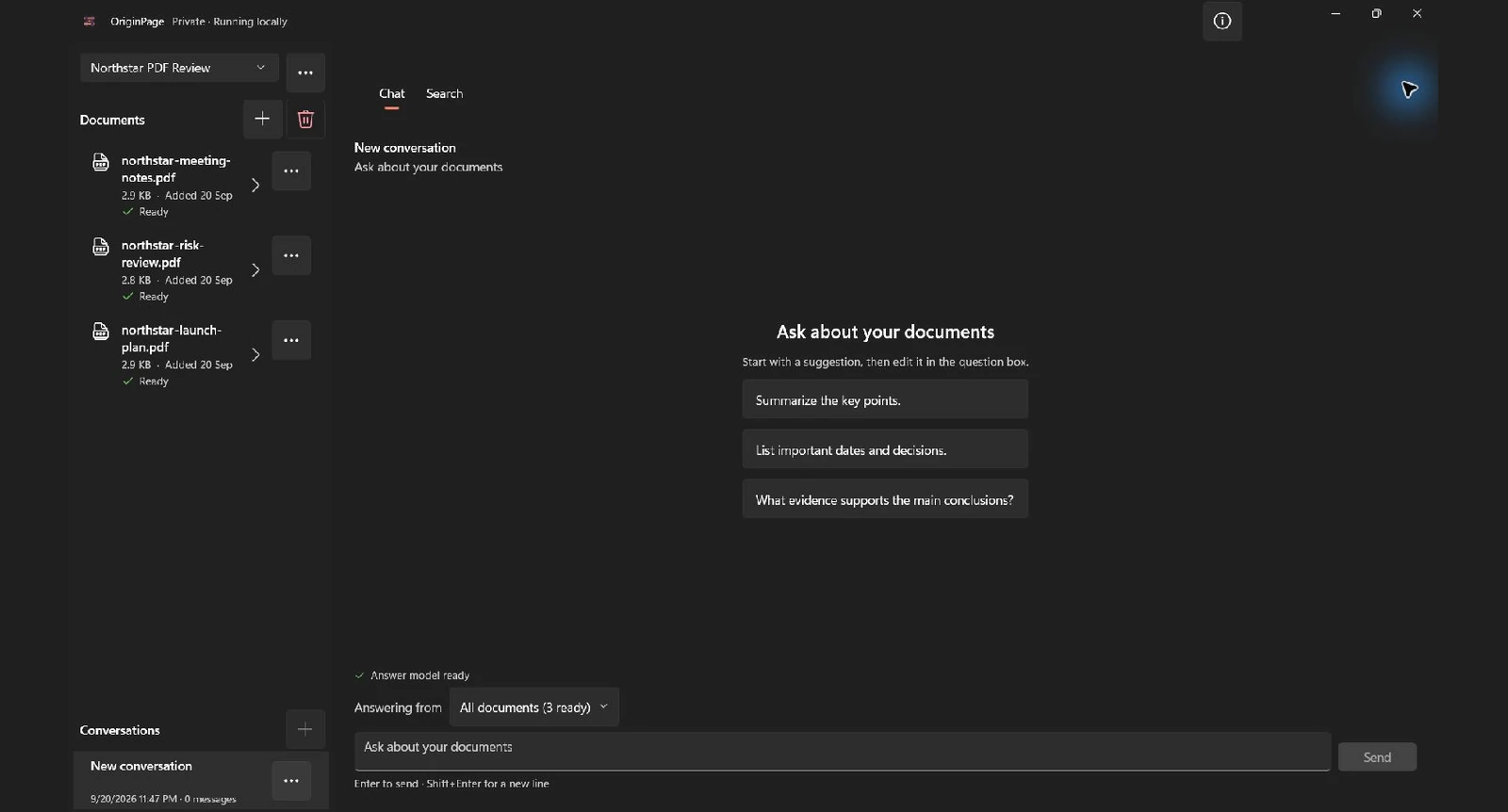
If your real collection includes scans, finish OCR review first. Exact identifiers deserve special care: dates, invoice numbers, section references, names, and 0/O or 1/I substitutions can change a result while leaving the surrounding sentence plausible. Inspect Document details when a page count or phrase looks wrong. Rewording the query cannot recover text that was never extracted.
Step 2: begin with Hybrid search across All documents
Open Search. Leave the file selector at All documents, choose Hybrid, and enter:
launch date Brighton certification rehearsal invitationsThis is intentionally a bag of concepts rather than a polished question. It asks the index to retrieve passages about the launch decision, payment certification, rehearsal, and invitations. In this run the query returned three results, one per file: the meeting notes ranked first, the launch plan second and the risk review third. Open each result to read the conditions beyond its preview.
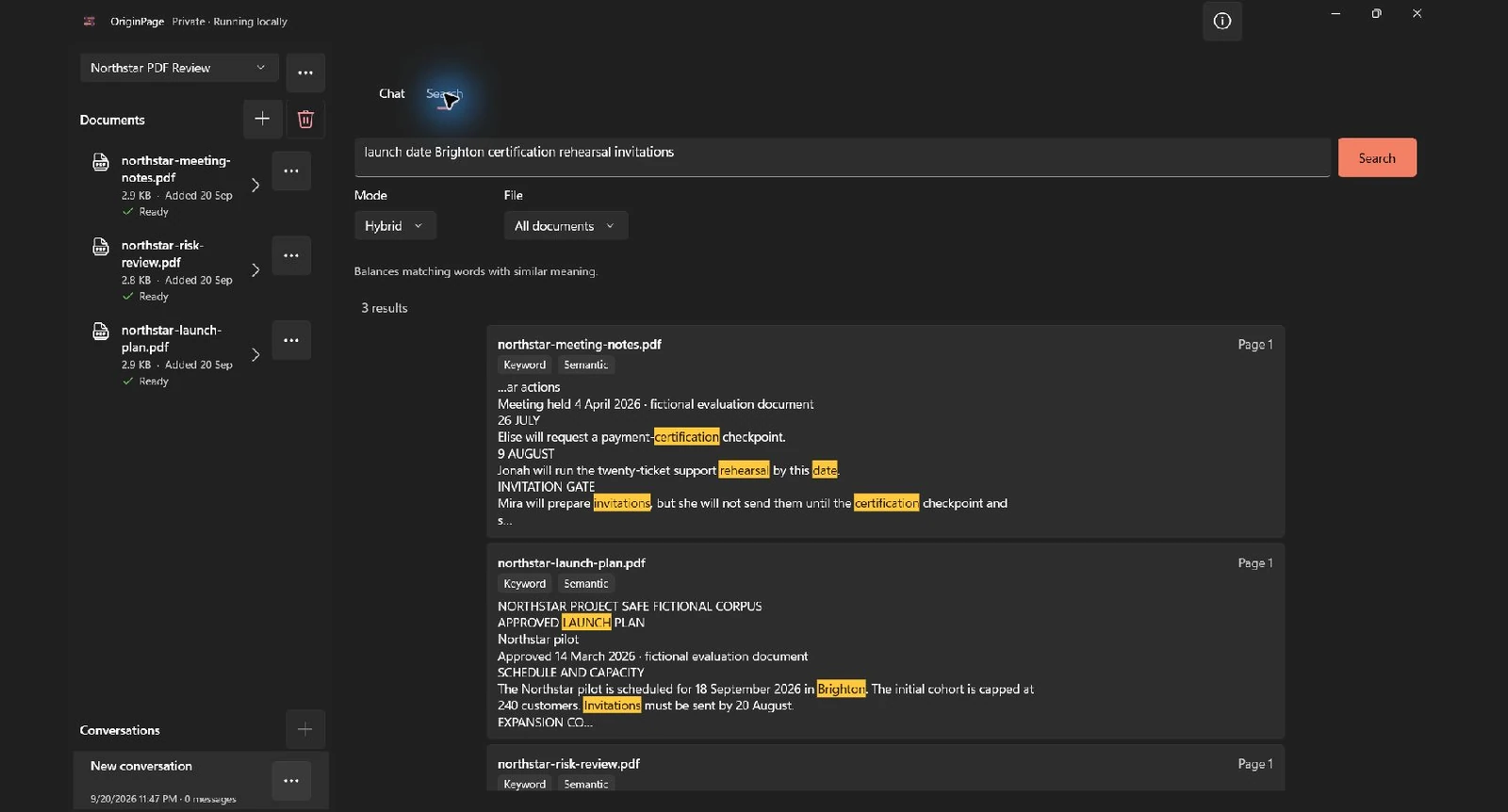
Notice what the result list does not do. It does not flatten three files into an unattributed blob. Each passage retains its filename, page, and matching context. That lets you distinguish a governing plan from a later meeting note and a risk register from a decision record.
For large collections, start broad but not vague. A query such as project update matches too many generic passages. Combine two or three anchors: a place, product name, decision, date, person, or uncommon term. You are not writing a prompt for an omniscient assistant; you are giving a retrieval system enough signal to separate one topic from its neighbors.
Step 3: choose the right search mode
OriginPage exposes four modes. Switching modes does not send the query elsewhere; it changes how the local index ranks passages.
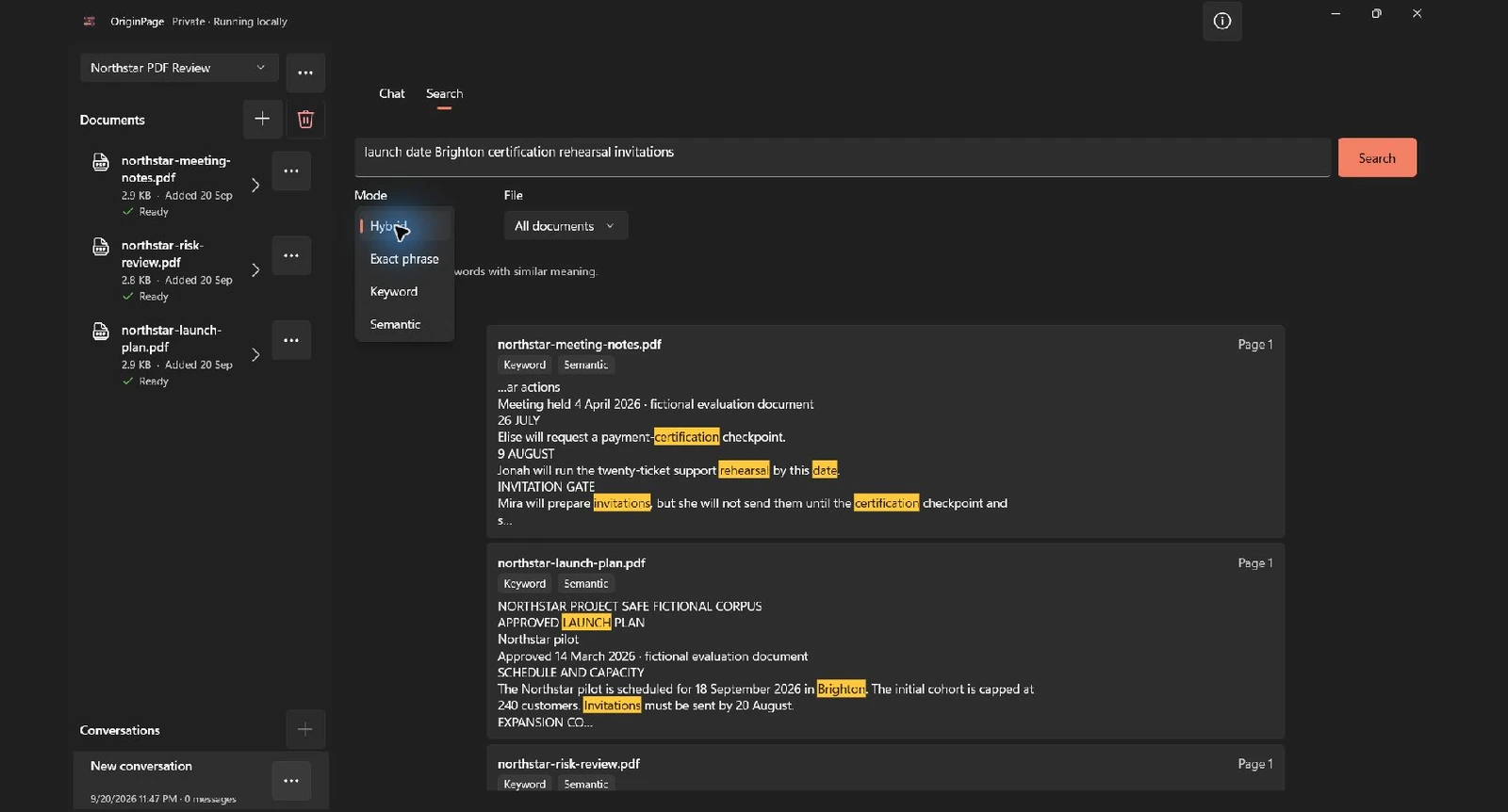
| Mode | Use it when | Example |
|---|---|---|
| Exact phrase | You know the precise wording or identifier. | "eighteen-day buffer" |
| Keyword | Specific words matter, but their order does not. | Brighton invitations 240 |
| Semantic | You know the concept but not the author’s vocabulary. | what must happen before outreach begins |
| Hybrid | You want exact anchors plus conceptually related wording. | launch certification rehearsal invitations |
Use Exact phrase to verify a quote or unusual clause. Use Keyword for names, codes, and several known tokens. Use Semantic for exploratory research, especially when teams use inconsistent terminology. Keep Hybrid as the default because it rewards both literal overlap and similar meaning.
Different modes answer different diagnostic questions. If Semantic finds a promising passage but Exact phrase does not, the idea may be present under different wording. If Exact phrase finds nothing, check punctuation, OCR, hyphenation, and whether the phrase crosses a line or page boundary. If every mode misses a known fact, inspect extraction and scope before blaming the query.
Step 4: narrow the search to one PDF or page range
An all-document result tells you where to look; a filter tests whether the same idea appears in a particular source. Change the file selector to northstar-risk-review.pdf while keeping the query. The capture shows a result restricted to the risk-review file. Your passage count can differ with the downloaded documents and installed build.
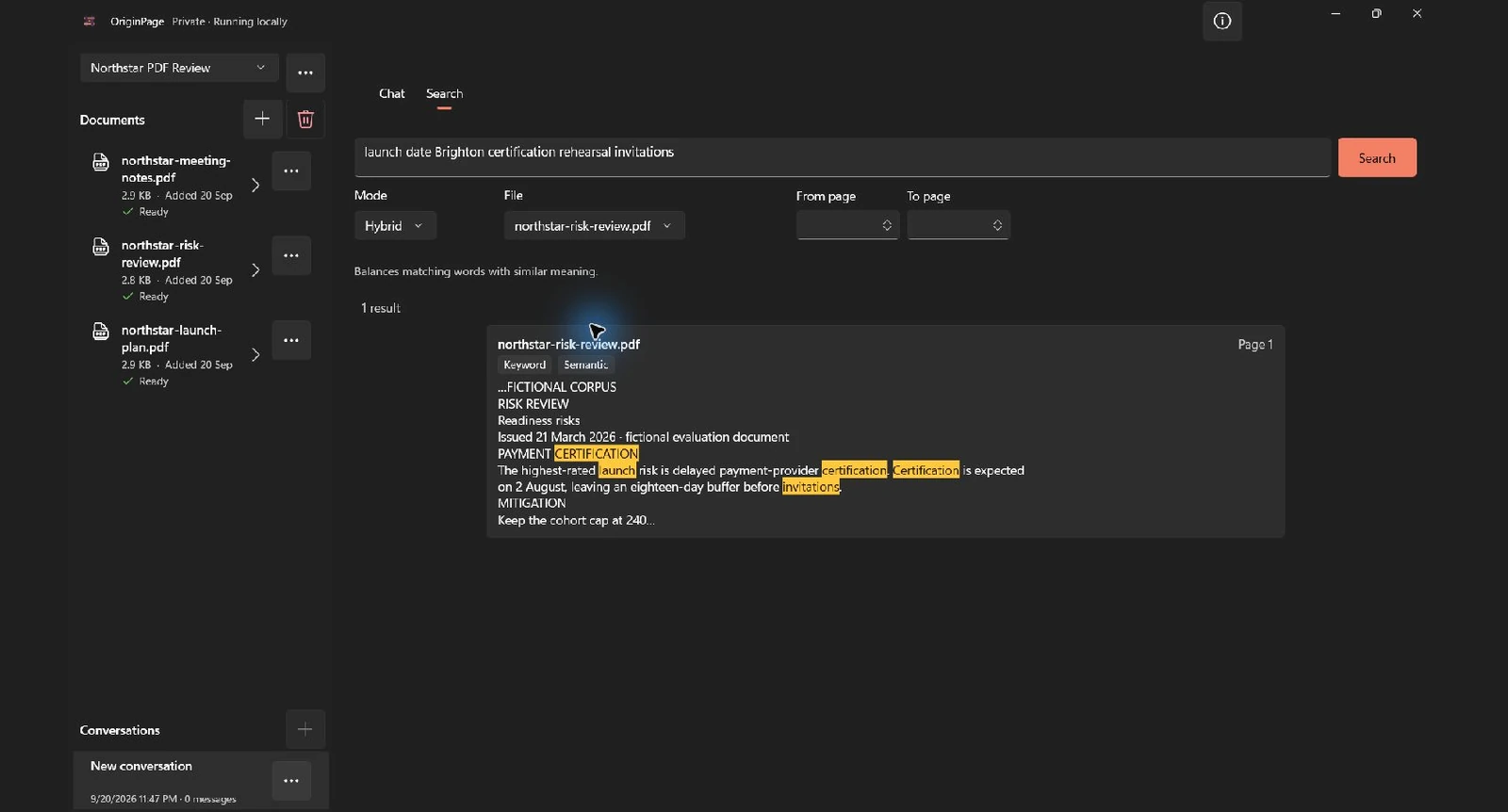
This is useful when several PDFs repeat a date but only one is authoritative. It is also useful for editions: a policy handbook and an amendment may both mention leave, yet the amendment should govern a changed rule. Search both to discover the conflict, then filter each file to inspect the wording independently.
Page ranges reduce noise in long reports. If an annual report places operational risks on pages 40–70, use that range instead of asking a semantic index to rank every cover page, appendix, and financial table. Remember that the page number in a PDF viewer can differ from a printed page number inside the document. OriginPage reports the PDF page position used by the retained source.
Step 5: separate direct search from AI answers
Direct Search and document chat solve related but different jobs.
- Search retrieves passages and shows why they matched. Use it for exact terms, discovery, source comparison, and diagnosing extraction.
- Chat retrieves eligible passages and asks a local answer model to synthesize them. Use it for a timeline, comparison, checklist, or focused question whose supporting passages you will inspect.
Before asking a multi-document question, set Answering from to All documents or choose a deliberate subset. Scope is not merely a convenience; it is part of the question. “What is the launch date?” can produce a different answer when the eligible set includes an obsolete plan, a customer note, or a separate project with the same codename.
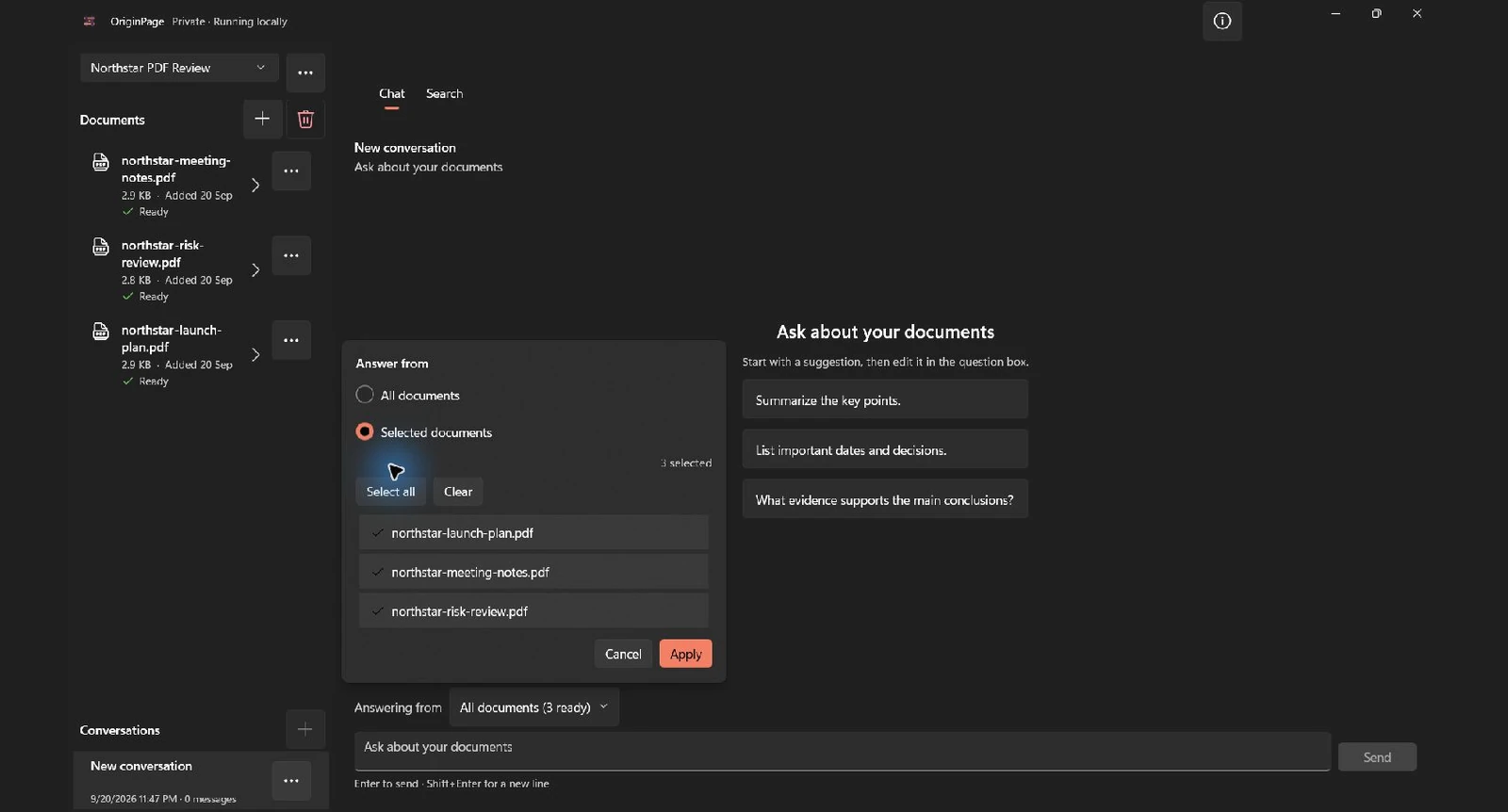
For this pack, a useful synthesis prompt is:
Create a chronological checklist from 26 July through the 18 September launch. Use only stated milestones, name the responsible person where the PDFs name one, and cite every item.
A correct synthesis should connect Elise’s 26 July checkpoint, the expected 2 August certification, Jonah’s rehearsal by 9 August, invitations by 20 August after the prerequisites, and the Brighton launch on 18 September. It should not invent a marketing budget, extra approval meeting, or revised launch date.
Treat the generated prose as a reading aid. Open each saved passage supporting a date or condition. A coherent timeline can still hide a mistaken order, merge facts from incompatible versions, or attach the wrong owner to a milestone. Local generation changes where processing happens; it does not eliminate model error.
Step 6: open the matched source context
Select any direct-search result to open the retained page context. In the risk review, the side panel shows the certification date, buffer before invitations, cohort cap, manual invoice mitigation, and simulated-ticket rehearsal in their surrounding text.
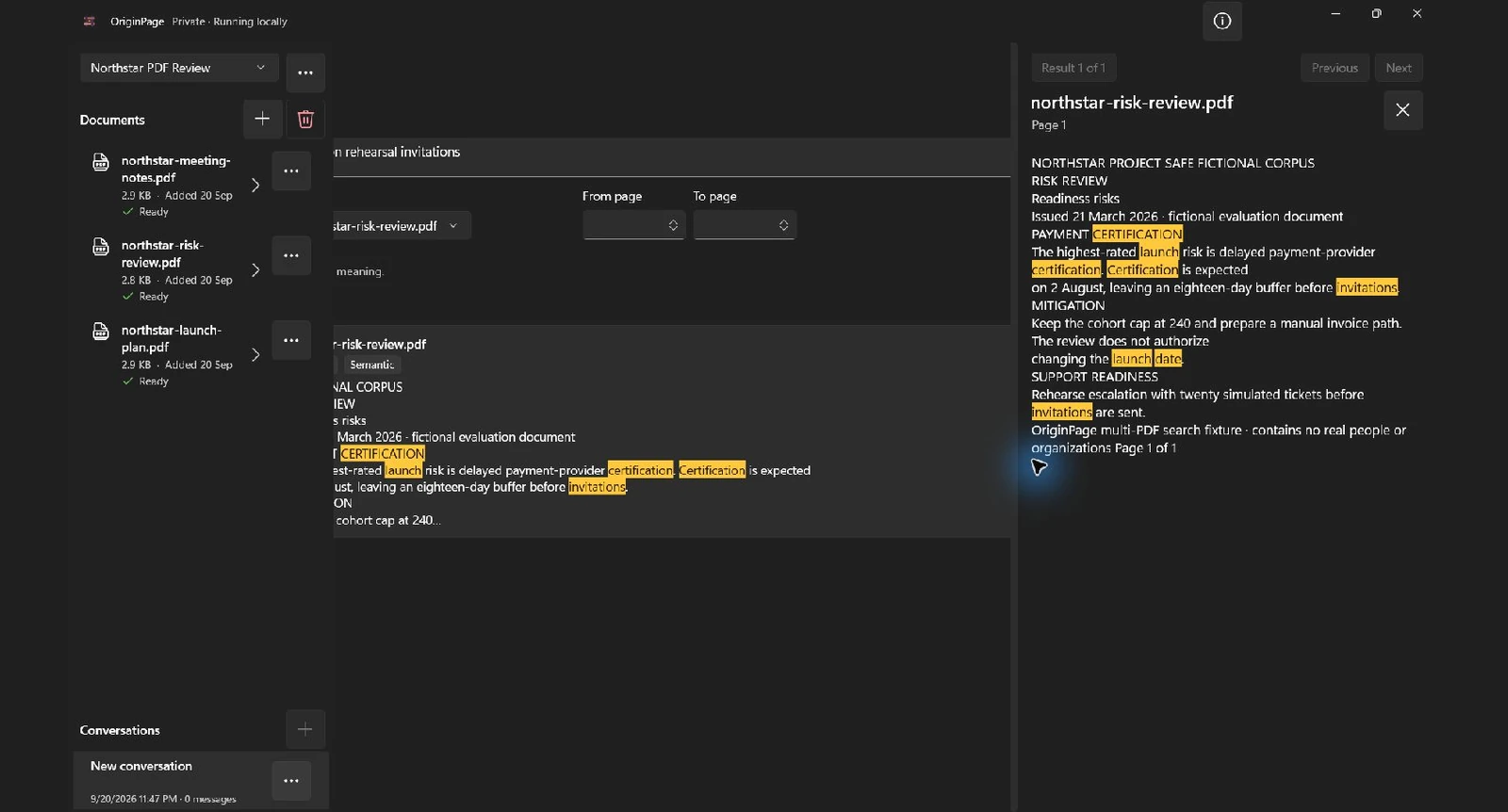
This inspection step catches three common mistakes:
- A relevant word in the wrong context. A document may say a date was proposed, rejected, or superseded.
- A partial condition. The result may highlight
invitations, while the surrounding sentence says they wait on two prerequisites. - A conflict between sources. A meeting note can describe intent while the signed plan records the decision.
When sources conflict, do not ask AI to choose silently. Identify the documents, dates, and authority of each source. A good prompt is: List every stated launch date, with filename, document date, and the wording that indicates whether it is proposed or approved. The resulting comparison is easier to audit than a request for “the correct date.”
Step 7: verify what “completely offline” covers
OriginPage’s in-app About & privacy statement says documents and conversations stay on the device, processing is local, and app content or telemetry is not sent during ordinary use. The dialog also describes the lifecycle of the managed workspace during Windows Repair, Reset, and uninstall.
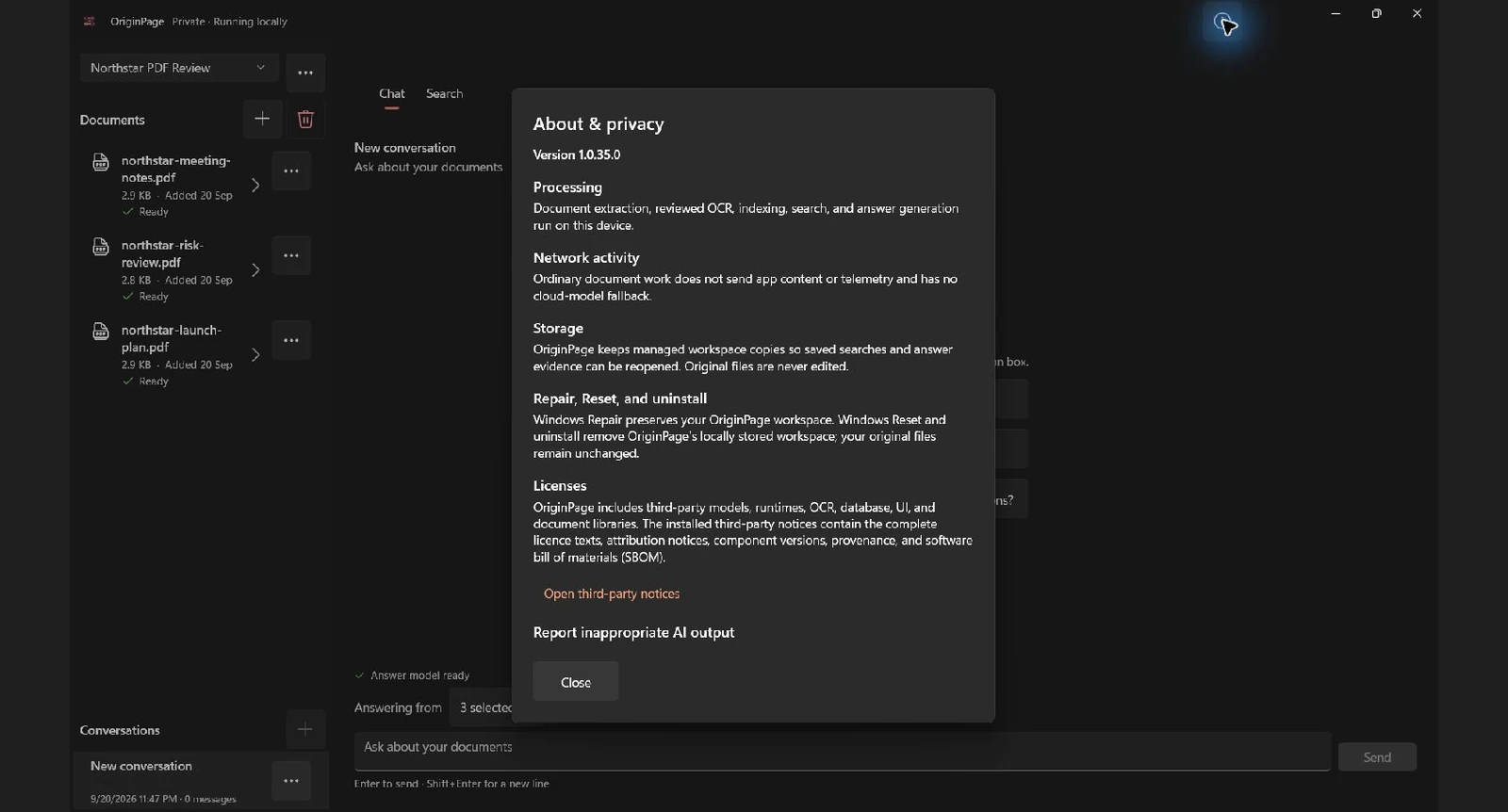
“Completely offline” still needs a boundary. OriginPage is responsible for its process tree and ordinary document workflow. Windows, Microsoft Store delivery, antivirus software, cloud-synced folders, backups, paging, hibernation, malware, and Windows Error Reporting are outside that boundary. Local search also does not encrypt your disk. Use an appropriate Windows security and BitLocker policy when the PDFs are sensitive, and read the detailed privacy boundary.
For independent assurance, monitor network activity while importing, indexing, searching, and asking questions. Attribute connections to the actual process rather than assuming every packet on the PC belongs to the document app. Test with Wi-Fi disconnected. Confirm that the app does not fall back to a cloud service when OCR, embedding, or answering is slow.
How to test missing information instead of rewarding guesses
Search the three-PDF pack for marketing budget, then ask: What is the approved marketing budget for the Brighton launch? No document states a marketing budget. The responsible output is no relevant search result or an answer that says the available evidence is insufficient.
Before accepting “not found,” verify the basics:
- All expected PDFs are Ready.
- The file selector or question scope includes them.
- Direct Search finds a nearby known term from the same page.
- Document details show usable extracted text for that page.
If those checks pass, absence is meaningful. Do not keep broadening the prompt until a fluent number appears. For legal, medical, financial, safety, or compliance decisions, local processing is a privacy property, not a guarantee of correctness or professional authority.
Common problems when searching many PDFs
Results come from only one file
Check that the file selector says All documents and that every intended PDF is Ready. Then reduce exact tokens or switch from Keyword to Hybrid. One document may use supplier approval where another uses payment-provider certification.
Exact phrase search misses visible words
The PDF may store words in a different reading order, insert hidden line breaks, or contain a scanned image rather than selectable text. Inspect retained text and OCR output. Try Keyword search for the rarest terms separately.
Semantic results feel too broad
Add one exact anchor such as a person, place, date, or product name. Switch to Hybrid. Filter to the relevant file or page range. Semantic similarity is intentionally tolerant, so scope and query specificity matter.
The top result is not the authoritative source
Ranking estimates relevance, not legal or organizational authority. Open the passage, check the document date and status, and compare conflicting sources. Use a restricted file scope when asking for a synthesized answer.
Search is slow on a large archive
Import a coherent working set rather than an indiscriminate file dump. Let indexing finish, then search by workspace, file, and page range. Local models use your machine’s CPU, memory, and storage; performance varies with hardware and corpus size.
FAQ
Can ChatGPT search multiple PDFs offline?
The ordinary hosted ChatGPT experience is not a completely offline PDF workflow. A genuinely offline setup needs local extraction, local embeddings or search indexes, and, if you want synthesis, a local answer model. OriginPage is designed to package that workflow in a Windows app.
What is the best way to search hundreds of PDF files?
Split the collection into meaningful workspaces, wait for indexing, begin with Hybrid search, and use exact anchors plus filters. Preserve filename and page provenance. A single giant corpus can make related projects, editions, and duplicate documents harder to distinguish.
Does semantic PDF search work without the internet?
Yes, when the embedding model and index run locally. The model must already be installed on the device. Verify that the tool does not call a remote embedding API or cloud OCR service.
Can offline AI search scanned PDFs?
It can when the app includes local OCR and the scan is within its supported languages and limits. Review uncertain characters before trusting exact names, dates, or reference numbers. OriginPage’s current target supports up to 100 OCR pages per PDF, initially focused on English print rather than handwriting.
Is local PDF search automatically private?
It reduces exposure to a document vendor’s cloud, but the PC still matters. Synced folders, backups, malware, other user accounts, crash reporting, and unencrypted disks can expose files independently of the search app. Privacy is a system property, not a badge.
The repeatable workflow
For day-to-day research, the reliable loop is simple:
- Put the relevant PDFs in one deliberate workspace.
- Finish OCR review and wait until every file is Ready.
- Start with Hybrid search across All documents.
- Add rare anchors and use file or page filters to reduce noise.
- Switch to Exact phrase or Keyword when wording matters.
- Open the retained source context for every material result.
- Set an explicit document scope before asking for AI synthesis.
- Check each generated claim against its saved passage.
- Test a known-absent fact to see whether the tool admits insufficient evidence.
- Keep the device, disk, backups, and retention policy appropriate to the data.
That is how to search multiple PDFs with AI without turning the collection into an opaque prompt attachment. The AI helps you retrieve similar meaning and combine related passages; the filenames, pages, and source context keep the result reviewable.
Method note
Capture date: September 20, 2026. These are live OriginPage 1.0.35.0 screenshots using the three downloadable PDFs, imported through the Windows picker. The stated Hybrid query returned three passages; filtering to the risk review returned one. Source context and the selected-document scope were inspected in the app. No results were seeded and no new network qualification or comparative benchmark was performed. Opening the inspector clips the left edge of the main content pane in this build; the retained source is visible on the right. Record your file versions, query, scope and results when repeating the exercise.
For Word files, follow the dedicated guide to search across multiple DOCX documents offline. For a single-document PDF answer workflow, read How to Chat With PDFs Offline on Windows. To evaluate whether extraction and evidence really work, use the five-minute PDF reading test. The full OriginPage guide covers workspace, OCR, search, conversations, evidence, and deletion behavior.
Try the reproducible three-PDF searchSafe fictional files with known cross-document facts DownloadTry OriginPage free for seven days through Microsoft Store to use this workflow on Windows 11. A one-time purchase is required to continue after the trial.