
How to Chat With PDFs Offline on Windows Without Uploading Them
A practical Windows walkthrough for private, source-checked PDF chat that keeps documents, questions, answers, and processing on your device.
The short answer: to chat with a PDF offline on Windows, use a document assistant that performs text extraction, OCR, indexing, retrieval, and answer generation on your PC, not merely an app that uploads the file and presents the result in a desktop window. Import the PDF, finish any OCR review, wait for a clear Ready state, choose which documents are allowed to answer, ask a specific question, and open the cited passage before relying on the response.
This guide walks through that process in OriginPage using a fictional four-page PDF. The file deliberately combines selectable text, a scanned page, an awkward two-column layout, and an exact contract clause. All seven app screenshots were captured from OriginPage 1.0.35.0 using the actual download. Import, OCR review and search completed; the first chat attempt crashed, while a shorter retry and the subsequent two-part question succeeded. The file includes an answer key, so this is a workflow demonstration, not a blind accuracy benchmark.
Download the walkthrough PDF4 fictional pages · selectable text, scan, columns, and an exact clause Download| Question | Practical answer |
|---|---|
| Does the PDF need internet access? | No. Once OriginPage is installed, ordinary document and conversation work is designed to run locally. |
| Is the original PDF changed? | No. OriginPage creates a managed local copy and leaves the source file unchanged. |
| Can it read scanned PDFs? | Yes, for supported English-language scans, with a page-level OCR review step. |
| Can I check an answer? | Yes. Answers include saved passages that open to the retained source context. |
| Is OriginPage publicly available today? | Yes. OriginPage offers a seven-day free trial through Microsoft Store for Windows 11, with a one-time purchase to continue. |
What “offline PDF chat” should mean
“Desktop app” and “offline” are not synonyms. A desktop client can still send your file, prompt, or extracted text to a remote API. Likewise, a product can download a model but rely on a cloud service for OCR or retrieval. If privacy is the reason you are looking for an offline PDF chat tool, ask about the whole document path:
PDF on disk
  → text extraction or OCR
  → local index
  → passage retrieval
  → answer generation
  → saved conversation and sources
In OriginPage, those ordinary document and conversation operations are designed to happen inside the app’s local process tree. There is no cloud fallback for a difficult question. The app does not intentionally send document content, questions, prompts, retrieved passages, answers, document identifiers, analytics, diagnostics, or licence checks to an OriginPage service. The visible “Private · Running locally” status is a reminder of that boundary, not a claim that Windows itself has become an air-gapped operating system.
That distinction matters. Windows services, Microsoft Store installation, antivirus software, backups, paging, hibernation, file-picker history, malware, and Windows Error Reporting exist outside the OriginPage process boundary. Local-only processing also does not mean the app encrypts your entire drive. Use BitLocker or another appropriate disk-encryption policy when the files warrant it, and read the full privacy boundary before handling sensitive material.
Before you start
Start a seven-day free trial and install OriginPage from its official Microsoft Store listing. Choose Free trial when available; Microsoft Store determines eligibility. A one-time purchase is required to continue after the trial. The screenshots are authentic OriginPage captures on 64-bit Windows 11, so some wording may differ from the current Store release. Use the signed Store distribution rather than an unofficial mirror.
The current target is a 64-bit Windows 11 PC with an SSD. Sixteen gigabytes of RAM is the practical reference configuration, and answer generation requires at least 4 GiB of physical memory to be available before it starts. Supported PDFs must be unencrypted and no larger than 256 MiB or 1,000 pages. Scanned documents can include up to 100 pages that need OCR. The initial language focus is English, and handwriting is not supported. See what OriginPage supports for the current document matrix and limits.
For this walkthrough, download the test PDF above and save it somewhere ordinary, such as Downloads. It contains no real people, clients, credentials, or confidential data.
Step 1: add the PDF from your computer
Open OriginPage and choose Add Documents. Select the PDF in the Windows file picker. The import begins locally; you do not need to drag the file into a browser tab or sign in to a cloud account.
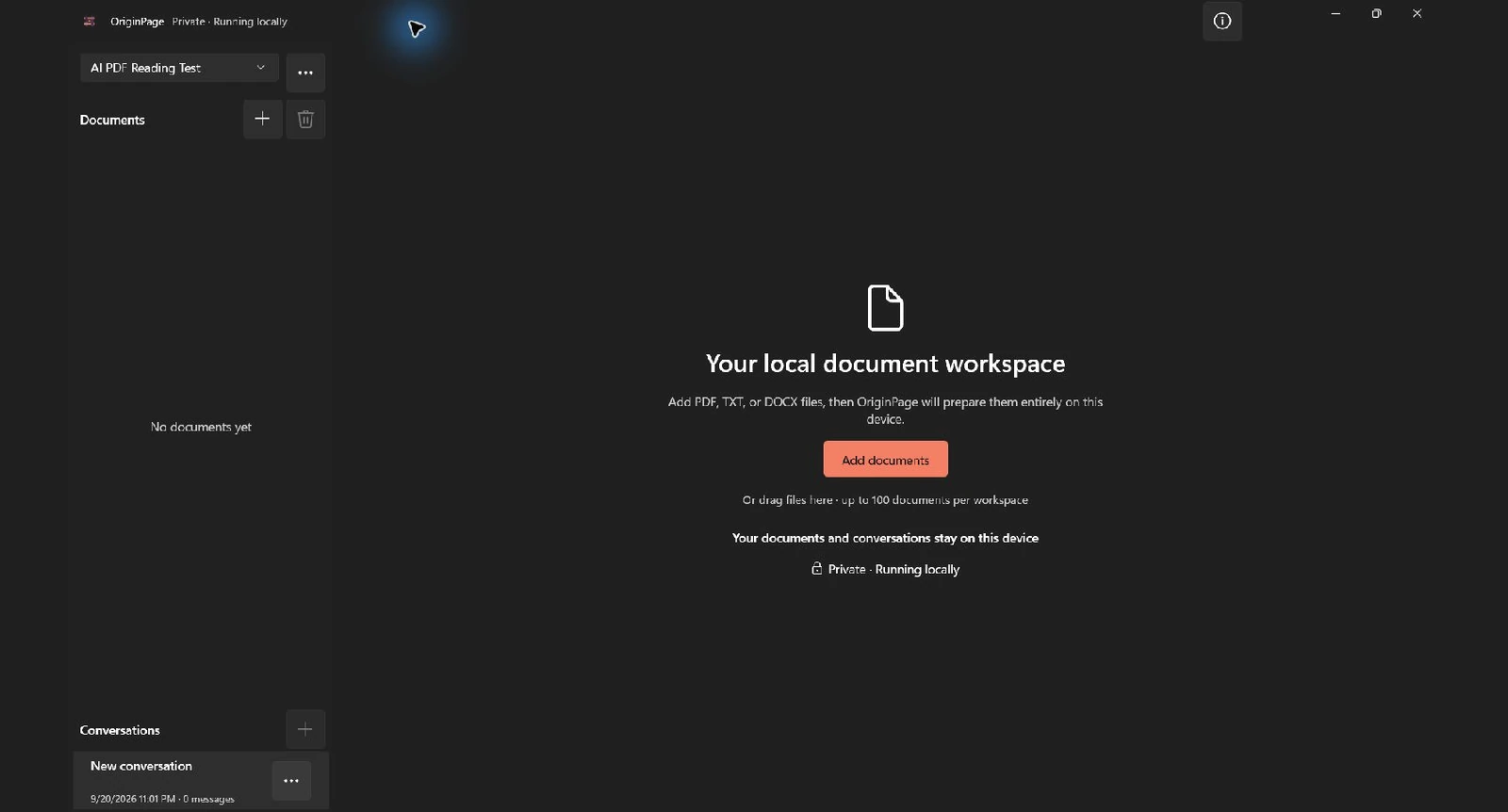
OriginPage copies the document into its managed local workspace. That copy is what the app processes and indexes; the original file remains where it was and is not modified. This separation makes later cleanup predictable: removing a document from OriginPage removes the managed copy and its processed data, not the source PDF in your chosen folder.
Do not ask a question the instant the filename appears. First check the document’s processing state. A searchable PDF may progress directly through extraction and indexing. A page made only of pixels needs OCR before its words can participate in retrieval.
Step 2: review pages that need OCR
The downloadable test PDF has one raster-only page. In this import, OriginPage flagged page 2 for OCR review and withheld the document from questions until review was finished. The screenshot below records that actual import state.
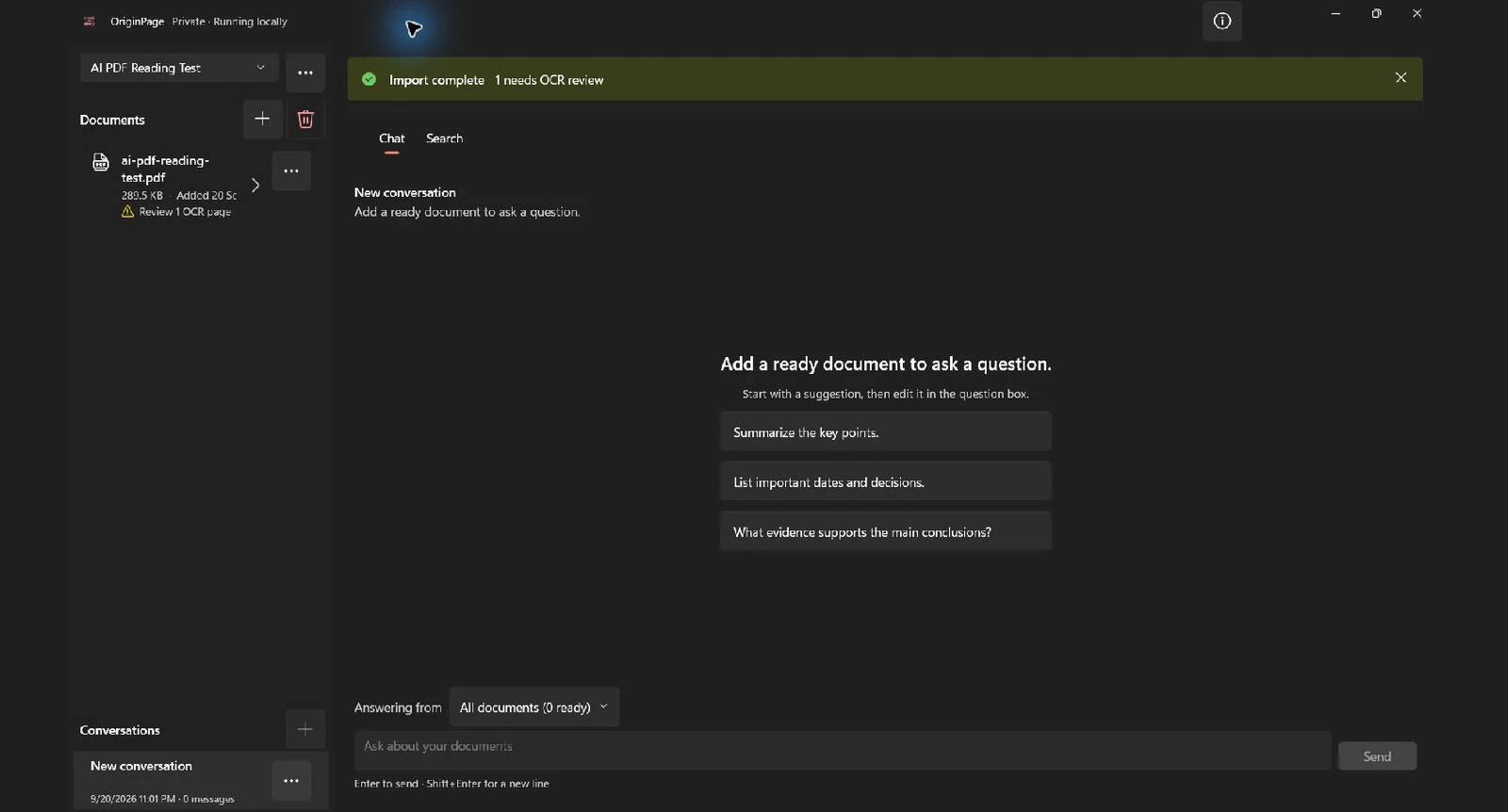
Open the review flow, compare the recognized words with the page image, and approve only text that is usable. Pay special attention to names, dates, reference numbers, decimal points, hyphens, and characters such as 0/O or 1/I. Natural-language answers can hide a small OCR mistake; an account number or contract date cannot.
The test page contains the unusual code CLOUD-5918, which makes a good character-by-character check. If OCR returns CLOUD-591B, that page should not become trusted evidence merely because the surrounding sentence looks sensible. A dependable offline workflow makes the uncertain page visible before it reaches the model.
After review, OriginPage indexes the approved text on the device. For a large PDF, let that finish rather than repeatedly resubmitting the file. The document becomes eligible for questions only when its state is Ready.
For a dedicated three-page exercise with actual recognition omissions and approval or exclusion decisions, follow How to Search Scanned PDFs Offline on Windows.
Step 3: inspect what became searchable
Select the Ready document to open Document details. This panel is the fastest way to separate a document-processing problem from an answer-generation problem. It shows the page count, size, number of retained characters and passages, last-indexed time, extracted-text preview, and any page-level warning.
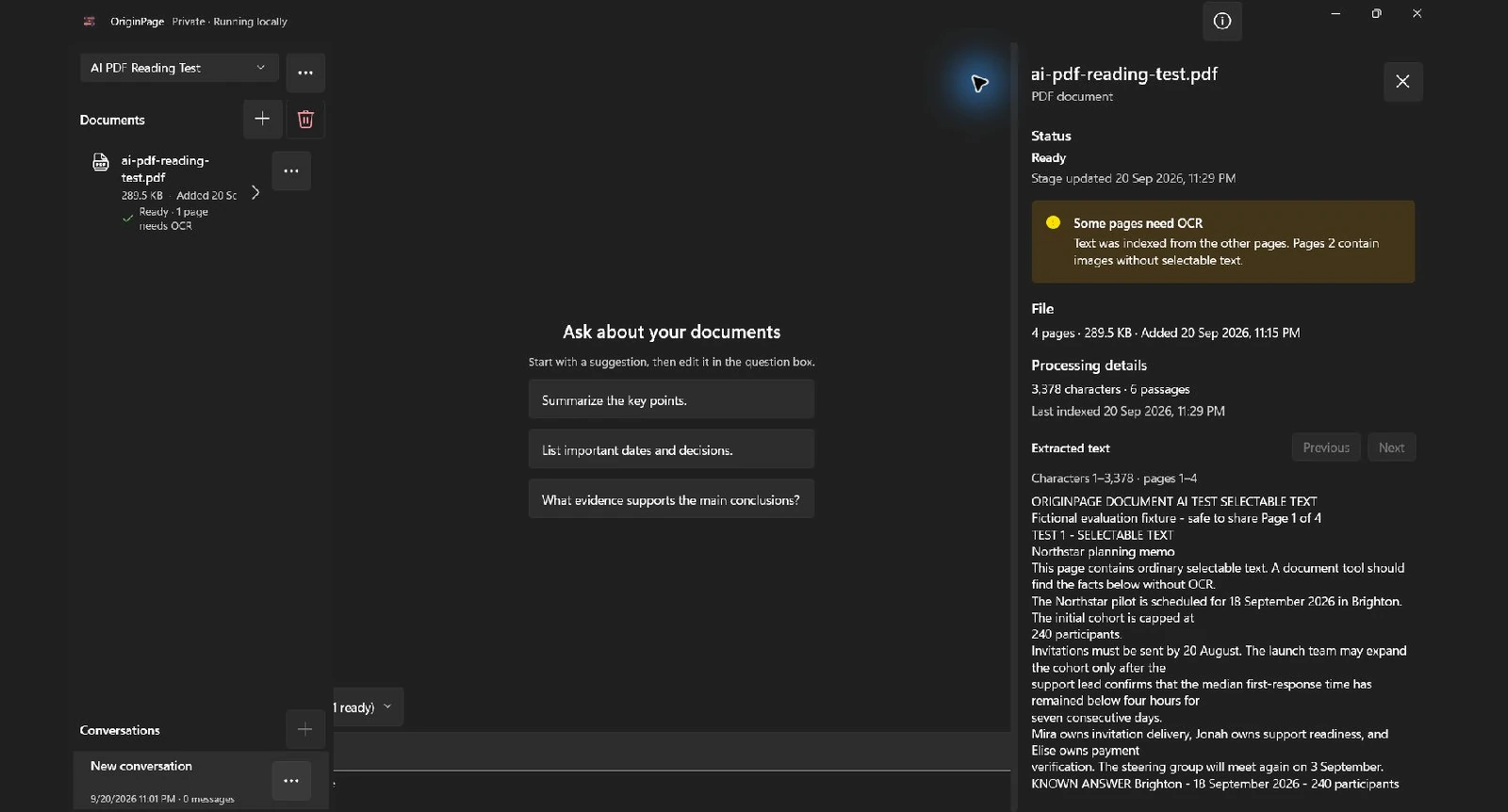
In this build, the OCR warning remained after approval even though Direct Search found the scanned page’s CLOUD-5918 token. Inspect the counts, retained text and search results together. If a needed fact is absent, investigate extraction or OCR before rewriting the prompt.
This is also where you can spot a more subtle issue: broken reading order. Multi-column PDFs sometimes store text in an order that differs from the page’s visual layout. Look for sentences that jump between topics or headings that are mixed into body text. OriginPage preserves extracted text for inspection precisely because a fluent answer alone cannot prove that a complex page was read correctly.
Step 4: choose the documents allowed to answer
Close Document details and use Answering from above the question box. Choose All documents when every Ready document in the current workspace is relevant. Choose Selected documents when a question belongs to a particular agreement, report, or group of files.
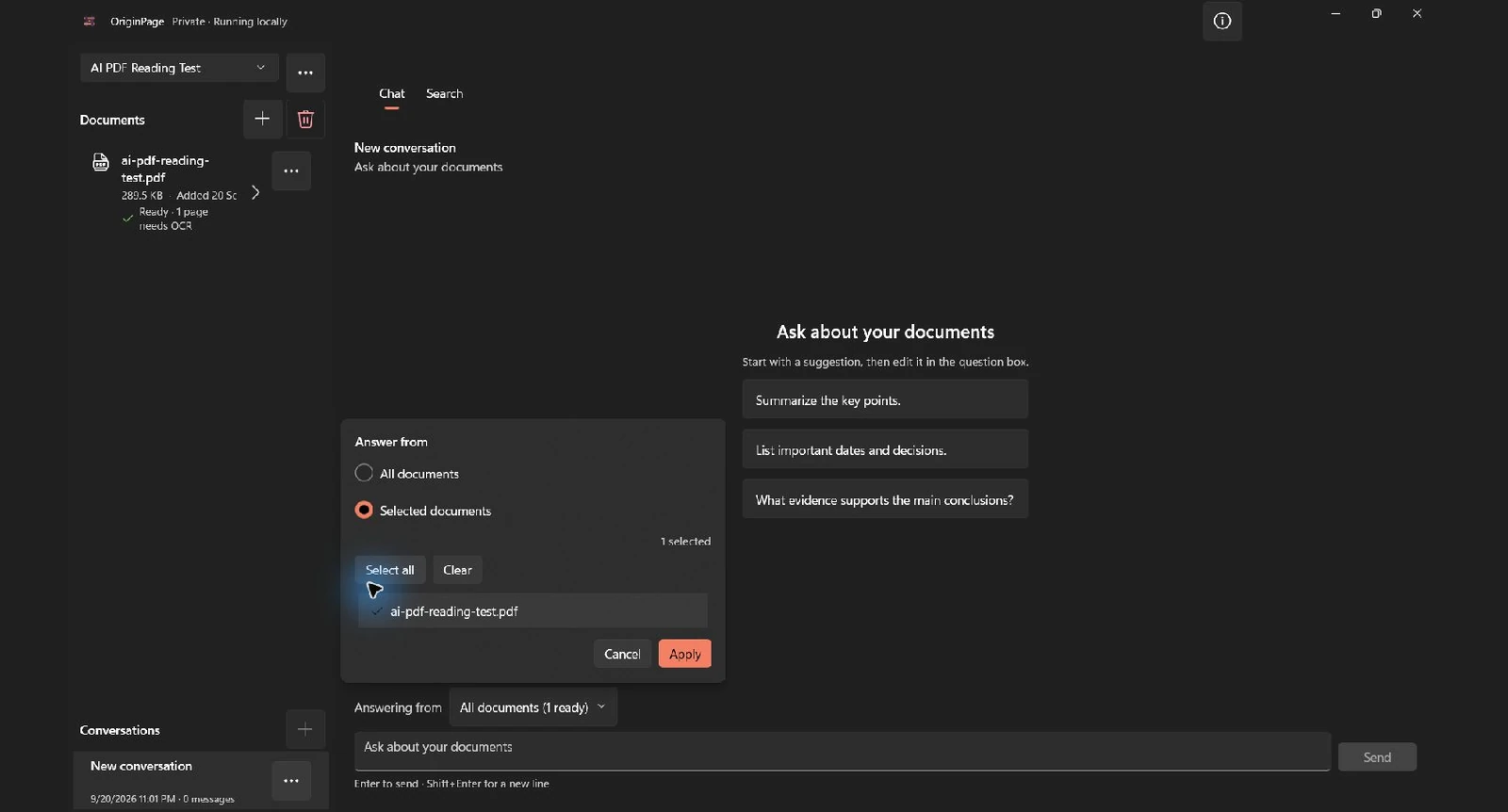
Scope is saved with each question, so the source boundary remains visible when you return to a conversation. For a one-file walkthrough either option is equivalent, but the distinction becomes important in a real workspace. If you have an employment contract, handbook, amendment, and an unrelated supplier agreement, “all documents” may retrieve the right phrase from the wrong legal context.
A selected scope must contain at least one Ready document. Files still importing, waiting for OCR review, or otherwise unavailable are not quietly treated as evidence. If chat is disabled, check document state and scope before assuming the model has failed.
Step 5: ask one precise question at a time
Good PDF questions name the fact, condition, comparison, or decision you need. Start with a prompt narrow enough that you can verify its complete answer in one or two passages. For the test agreement, ask:
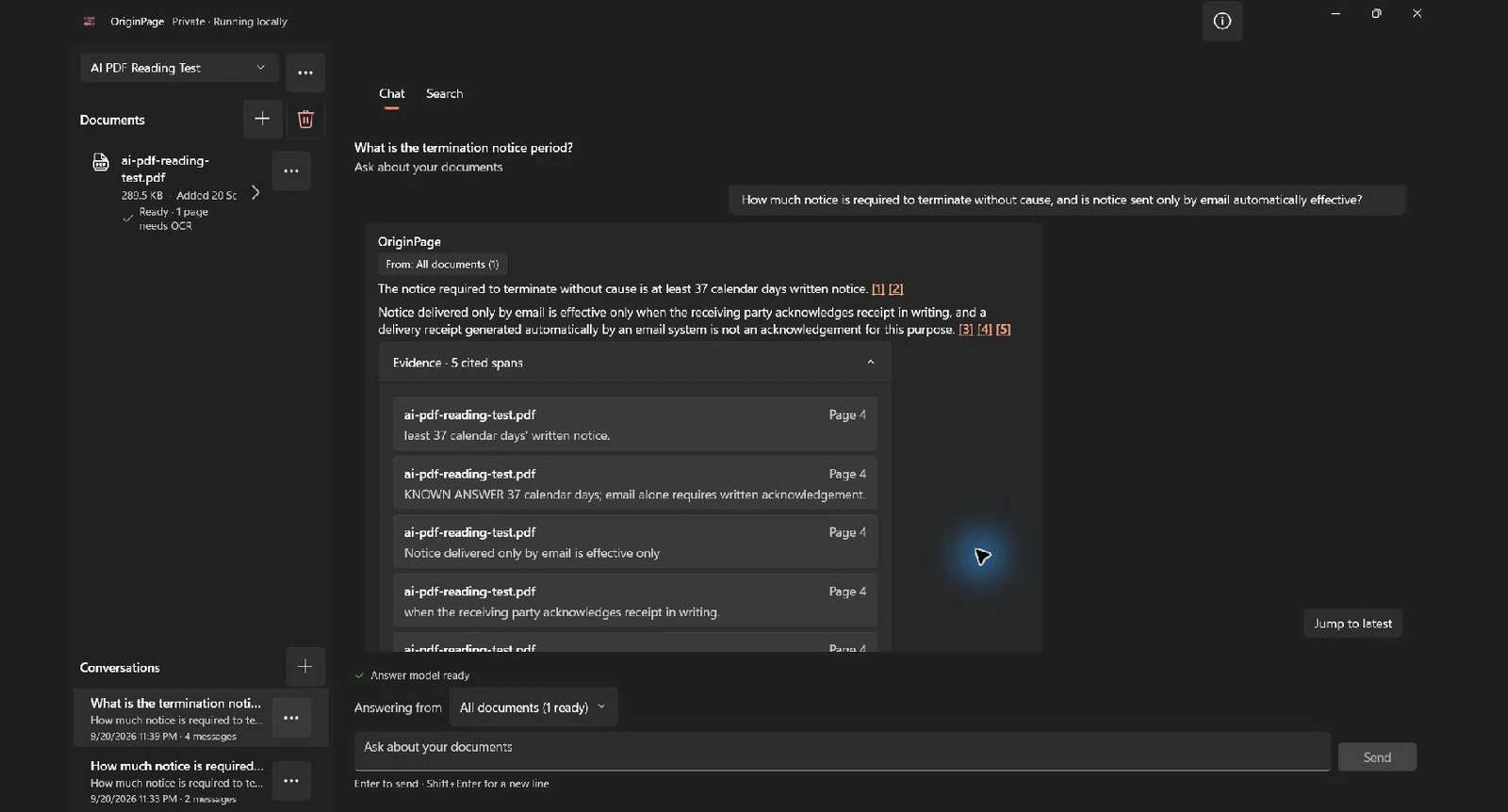
How much notice is required to terminate without cause, and is notice sent only by email automatically effective?
This wording is intentionally harder than “summarize the termination section.” It requires an exact number and the condition attached to email delivery. The answer should say at least 37 calendar days’ written notice and explain that email-only notice becomes effective only when the receiving party acknowledges receipt in writing; an automated delivery receipt does not count.
Answer generation can be the slowest part of a fully local pipeline, especially on a machine with limited memory. The advantage is a clear privacy and availability trade: once installed, the ordinary workflow does not depend on a remote model being reachable. The disadvantage is that your PC supplies the compute. Keep the machine plugged in for long sessions, leave enough physical memory free, and expect performance to vary by hardware and document size.
Follow-up questions can use conversational context, but the factual basis should still come from eligible document passages. “What exception follows that clause?” is a reasonable follow-up after the termination question. “What is normal in contracts like this?” asks for general knowledge that may not exist in the selected files. When the purpose is document review, restate the subject and keep the source boundary explicit.
Step 6: open the evidence behind the answer
Expand Evidence below the response. The saved spans show the filename, page number and retained text. Check every material number, name, date, exception and condition. In this run, five cited spans cover the 37-day period and the written-acknowledgement rule, including an embedded answer-key line that should not be mistaken for independent evidence.
Select the passage to open its source context. OriginPage highlights the retrieved span inside the retained page text, making it possible to inspect words immediately before and after the evidence.
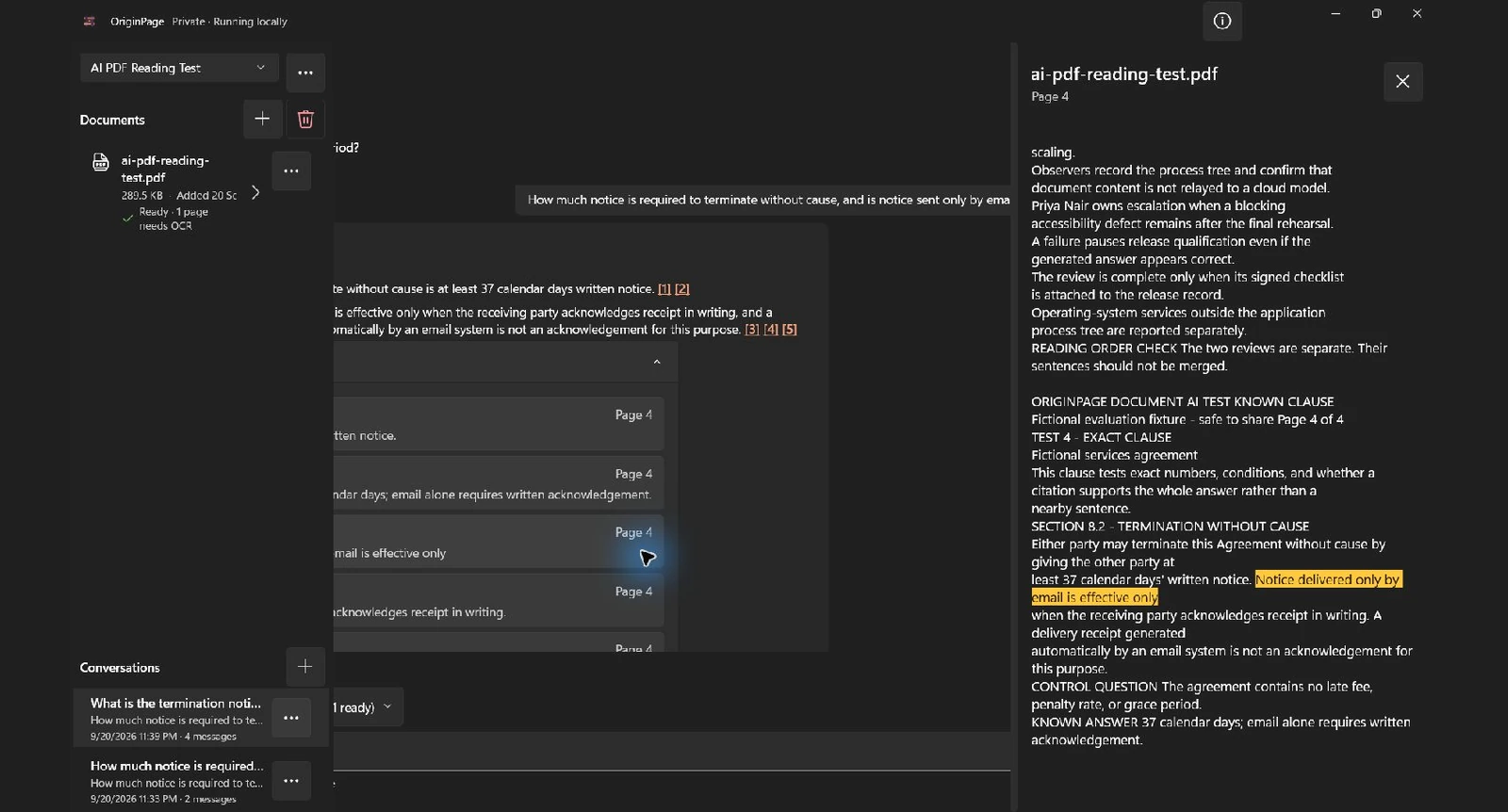
This step is what turns PDF chat from a convenient paraphraser into a reviewable research aid. A filename badge is not enough. A page number helps, but the visible passage is better: it lets you decide whether the cited words actually entail the claim. If an answer combines facts from multiple pages, inspect each saved passage rather than assuming one citation supports the entire paragraph.
For an independent check, switch to Search and query an unusual exact token such as 37 calendar days or CLOUD-5918. Direct Search removes answer generation from the path. If the phrase is missing there, the issue is extraction, OCR, indexing, or scope, not prompt style. If search finds the correct passage but chat answers incorrectly, the issue is more likely retrieval or generation. Our five-minute PDF reading test explains how to diagnose those layers systematically.
Step 7: verify the local privacy boundary
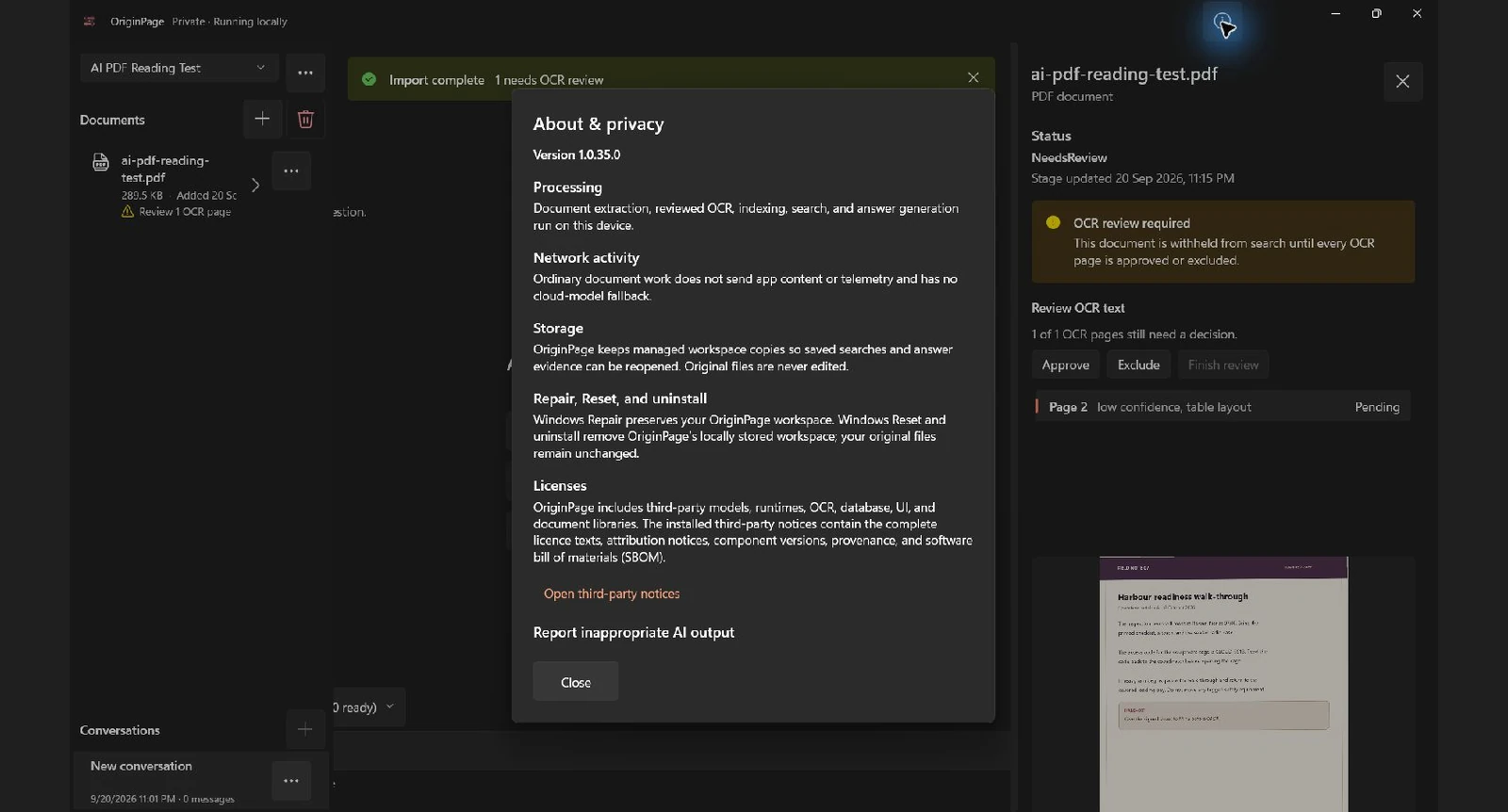
Open About & privacy from the top-right menu. The installed build states that documents and conversations stay on the device, processing is local, and app content or telemetry is not sent by the ordinary workflow. It also explains what happens to locally stored workspace data during Windows Repair, Reset, or uninstall.
For stronger assurance, do not rely on a label alone. Compare the product’s published boundary with what the operating system reports during import, OCR, search, and answer generation. A network monitor should distinguish OriginPage’s process tree from unrelated Windows traffic. Also confirm whether update checks, crash reporting, account sign-in, remote fonts, or third-party OCR are present. OriginPage’s design deliberately excludes cloud fallback and product telemetry from ordinary document and conversation work; the detailed privacy page states the claim and its limits.
What to do when the answer is not in the PDF
Ask the test file this second question:
What late fee applies when a payment is overdue, and how long is the grace period?
The correct outcome is not a percentage. The PDF contains no late fee, penalty rate, or grace period. A trustworthy document assistant should report insufficient evidence, not complete a familiar contract pattern from general language-model knowledge.
When you see an insufficiency response, check three things before concluding the document is silent:
- Is the correct PDF Ready and included in the question scope?
- Does Direct Search find related terms such as
late fee,penalty, orgrace period? - Do Document details show that the relevant pages produced usable text?
If scope and indexing are correct and no relevant passage exists, the responsible action is to consult another document or a qualified person. For legal, medical, financial, safety, or compliance decisions, local processing improves privacy; it does not make an automated answer authoritative.
Troubleshooting offline PDF chat on Windows
The question box is disabled
At least one eligible document must be Ready. Finish OCR review, wait for indexing, then re-open the Answering from selector. If you chose Selected documents, make sure the selection is not empty.
The PDF imports but some pages are missing
Open Document details and compare page count and extracted text. Image-only pages may require OCR review. Encrypted PDFs are unsupported, and the current limits are 256 MiB, 1,000 total pages, and 100 pages needing OCR. Handwriting and non-English scans are outside the initial support target.
An exact name or number is wrong
Search the token directly and inspect the retained passage. If the retained text is wrong, revisit OCR or the source PDF. If the retained text is correct but the answer changes it, treat that as an answer-generation error and use the source value.
The answer uses the wrong document
Change the scope from All documents to Selected documents and include only the files that govern the question. Start a new conversation if earlier context is likely to confuse the subject.
Local generation will not start
Close memory-heavy applications and check that at least 4 GiB of physical memory is available. The model will not begin answering below that guardrail. An SSD and 16 GiB of system RAM are the practical baseline for a smoother experience.
You need to remove the local copy
Use OriginPage’s document removal action to delete the managed copy and its processed data. This does not delete or alter the original PDF. If you uninstall or reset the app, locally stored workspace data is removed; Windows Repair is intended to preserve it. Apply your normal backup and retention policy to the source files separately.
A repeatable private-PDF checklist
Before relying on any answer, run this short loop:
- Confirm the tool’s entire document pipeline is local, not only its user interface.
- Import an unencrypted, supported PDF from a trusted location.
- Review every page held for OCR, especially exact identifiers.
- Wait for Ready and inspect page count, retained text, and index facts.
- Limit Answering from to the documents that should govern the question.
- Ask for a precise fact and its conditions, not only a broad summary.
- Open every saved passage supporting a material claim.
- Use Direct Search when you know an exact phrase or suspect an extraction problem.
- Treat “not enough evidence” as a useful outcome, then verify scope and indexing.
- Keep disk encryption, Windows security, backups, and retention controls appropriate to the data.
That is the practical meaning of chatting with a PDF offline: the file stays local, but so do the responsibilities of checking extraction, evidence, device security, and the limits of the answer.
Method note
Capture date: September 20, 2026. All figures show the installed OriginPage 1.0.35.0 candidate and the actual four-page download. OCR retained CLOUD-5918, a low-confidence warning and an extra stray line; the approved token was then found through Hybrid search. The first two-part question closed the app and was saved as a generation failure. After reopening, a shorter question succeeded; the two-part question then succeeded in the same new conversation. That retry used All documents with only the test PDF present. The initial failure is retained in the capture archive, and these results do not establish reliability or explain the crash’s cause. The PDF contains a known-answer line that the model also cited, so this is not a blind accuracy test. No new offline network qualification was performed. Follow the user guide for controls and record your own result.
OriginPage is designed around answers with an origin: useful prose, an explicit document scope, and source context you can inspect without sending the underlying PDF away.