
How to Summarize Confidential PDFs Without Uploading Them
A practical OriginPage walkthrough for creating source-checked PDF summaries entirely on your Windows PC, without sending confidential files to a cloud service.
The short answer: to summarize a PDF without uploading it, use a local application in which text extraction, OCR, indexing, retrieval, and answer generation all run on your computer. Add the PDF, wait until processing is complete, inspect the extracted text, ask for a narrowly defined summary, and verify every important statement against the saved source passage.
That last step matters. A summary can be fluent, accurate in what it says, and still omit something important. In the real test documented below, OriginPage returned four correctly cited launch facts from one of three eligible PDFs. It did not include the owners and intermediate prerequisites recorded in the meeting notes. Because the answer exposed its evidence, the omission was visible. We could follow up instead of mistaking a plausible paragraph for a complete account.
This walkthrough uses OriginPage on Windows and a downloadable pack of three fictional Northstar project PDFs. The files contain no real people, customers, or organizations. Related facts are split across a launch plan, a risk review, and meeting notes, which makes the set useful for testing both privacy and summary completeness.
Download the confidential-PDF test packThree safe fictional PDFs with facts you can verify Download| Question | Practical answer |
|---|---|
| Do I need to upload the PDF? | No. OriginPage's ordinary document workflow is designed to process the file locally on the Windows PC. |
| Is my original PDF modified? | No. OriginPage works from a managed local copy; the original file remains unchanged. |
| Can it summarize a scan? | Yes, within the supported OCR limits, after you review uncertain extracted text. |
| Can I check the summary? | Yes. Generated claims link to retained source spans, filenames, and PDF pages. |
| Can I install OriginPage today? | Yes. OriginPage offers a seven-day free trial through Microsoft Store for Windows 11, with a one-time purchase to continue. |
What “without uploading” actually means
A desktop window is not proof of local processing. Some desktop tools upload the document for OCR, call a hosted embedding service to index it, or send retrieved passages to a cloud language model. Others keep the PDF local but transmit prompts, snippets, telemetry, or crash data. If the document is confidential, the meaningful question is not where the interface runs. It is where every stage of the document path runs.
A genuinely local summarization path looks like this:
PDF on your drive
  -> managed copy on the same PC
  -> local text extraction or reviewed OCR
  -> local page-aware index
  -> local retrieval of relevant passages
  -> local answer model
  -> summary with inspectable source evidence
No ordinary step in that path should require the file or its content to leave the device. That reduces exposure to a document vendor, a cloud storage bucket, and third-party model providers. It also lets the workflow continue when the PC is disconnected from the internet, provided the application and its models are already installed.
Local processing is a privacy boundary, not a complete security program. Windows, cloud-synced folders, enterprise backups, paging and hibernation files, malware, other local accounts, antivirus products, and operating-system error reporting sit outside the application’s process boundary. A local AI tool cannot compensate for an unlocked computer or an unencrypted drive. Read the detailed OriginPage privacy boundary and apply the device controls appropriate to your material.
Before you summarize a confidential PDF
Start a seven-day free trial and install OriginPage from its official Microsoft Store listing. Choose Free trial when available; Microsoft Store determines eligibility. A one-time purchase is required to continue after the trial. The screenshots are authentic OriginPage captures on 64-bit Windows 11, so some wording may differ from the current Store release. The practical reference setup is a Windows 11 PC with an SSD and 16 GB of RAM. Local answer generation needs at least 4 GiB of physical memory available before it begins.
Current PDF limits are 256 MiB or 1,000 pages per file, with up to 100 pages requiring OCR. Files must be unencrypted. The initial OCR focus is printed English; handwriting is not supported. A workspace can contain up to 100 documents. Check what OriginPage supports before importing an unusually large, scanned, or mixed-language archive.
Before using any local summarizer with real confidential data:
- Confirm that the document is permitted on that computer under your organization’s policy.
- Copy it out of a consumer cloud-synced folder if that folder is outside the approved boundary.
- Use full-disk encryption and an appropriately protected Windows account.
- Know whether backups, endpoint monitoring, or crash collection can capture file content.
- Decide how long the application’s managed copy and conversation should remain.
- Keep a human reviewer responsible for legal, medical, financial, safety, and compliance decisions.
The phrase without uploading means the summarization vendor does not receive the PDF through the ordinary workflow. It does not mean the document has become invulnerable to every component on the PC.
The fictional document set
Extract the downloadable ZIP to an ordinary local folder. The pack contains:
| Purpose | Known facts | |
|---|---|---|
| Launch plan | Approved schedule and capacity | Brighton; 18 September 2026; 240 customers; invitations by 20 August |
| Risk review | Payment risk and mitigation | Certification expected 2 August; 18-day buffer; 20-ticket rehearsal |
| Meeting notes | Owners and prerequisites | Elise: 26 July; Jonah: 9 August; Mira waits for both |
The set is intentionally small. You know the ground truth before asking for a summary, and no private information is at stake while you learn the controls. It also demonstrates why a collection summary needs more than a polished answer: the approved plan, implementation risk, and operational owners live in different sources.
Step 1: add the PDFs and wait for Ready
Create a dedicated workspace, select Add Documents, and choose the three PDFs. OriginPage creates managed copies inside its local workspace and leaves the originals where they are.
Wait until every intended document says Ready. A filename appearing in the sidebar does not prove that its text is eligible for retrieval. The file may still be extracting, awaiting OCR review, or building its local index. Summarizing too early gives the model an incomplete evidence pool.
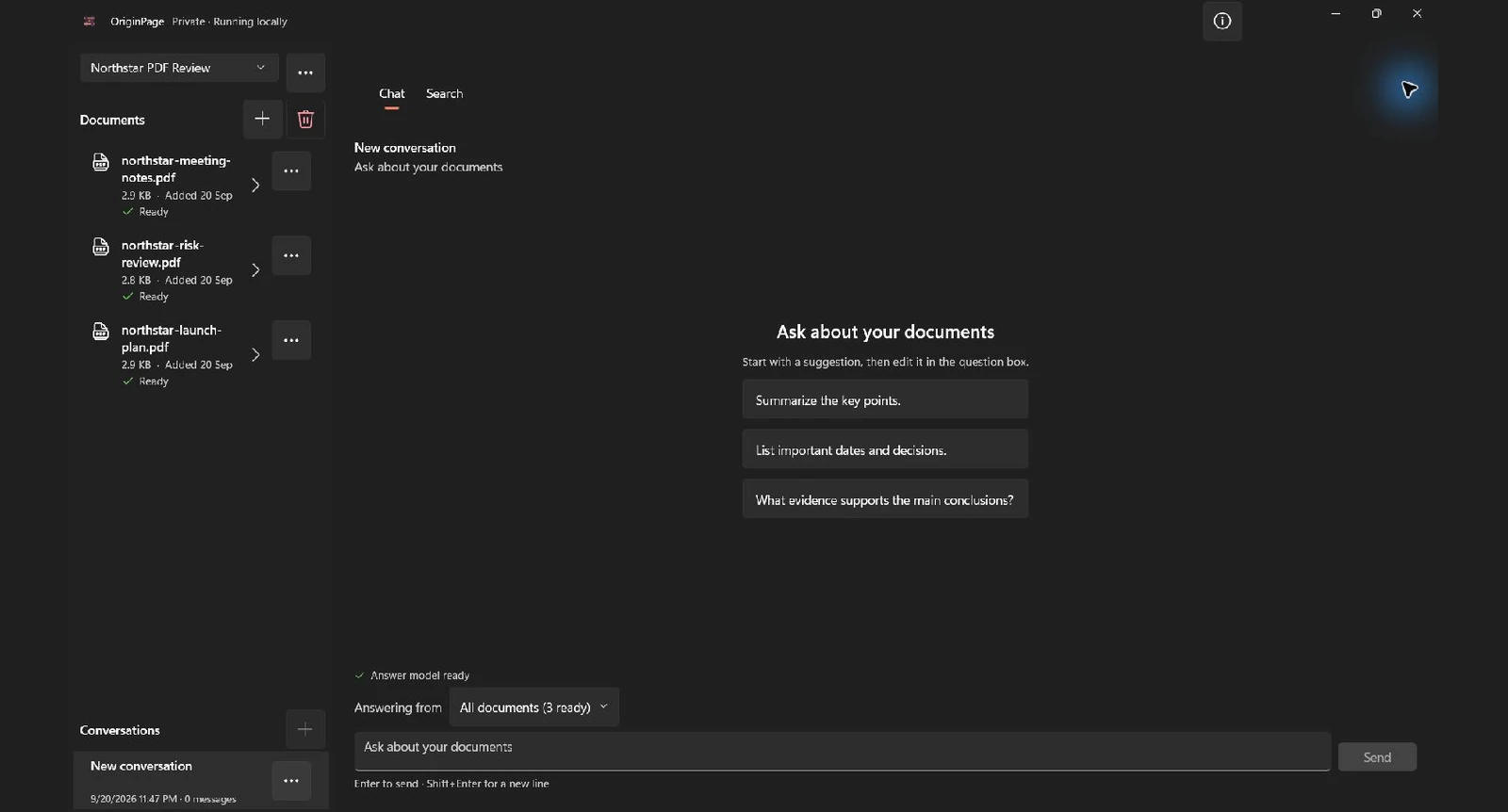
For a real engagement, create a workspace around a coherent question, matter, customer, or project. Do not add an entire drive merely because the tool can hold many documents. A deliberate workspace reduces accidental scope, version confusion, and irrelevant retrieval. It also makes later deletion easier to reason about.
Step 2: inspect the extracted text
Open a document’s menu and choose View details. OriginPage shows the retained text by page. Read representative passages before relying on a summary, especially headings, tables, dates, names, and pages produced by OCR.
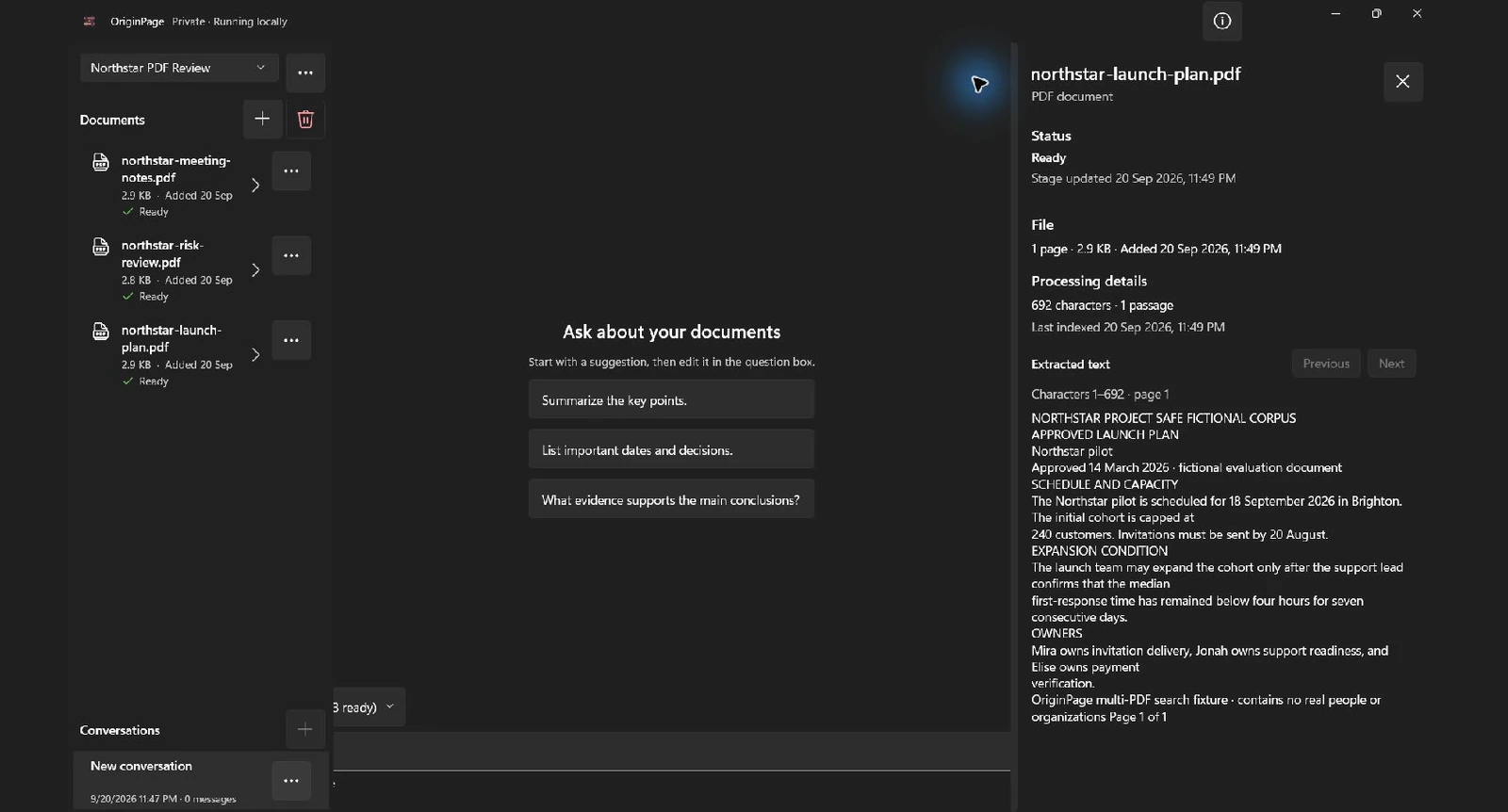
This is the most overlooked quality check in PDF summarization. A model cannot faithfully summarize text it never received. PDFs can store words out of reading order, split a sentence across invisible boxes, turn tables into scrambled columns, or contain only page images. OCR can confuse 0 with O, 1 with I, and a faint decimal point with background noise.
If the text is wrong, fix or review extraction before changing the prompt. A clever request cannot reconstruct a missing paragraph. For important identifiers, compare the retained text with the visible page. If a table is central to the decision, verify rows and column relationships manually rather than assuming linearized text preserved them.
Step 3: define the evidence scope
Return to Chat and open Answering from. You can use All documents or choose a deliberate subset. In this test, the workspace contains only the three relevant Northstar PDFs, so All documents is the correct scope.
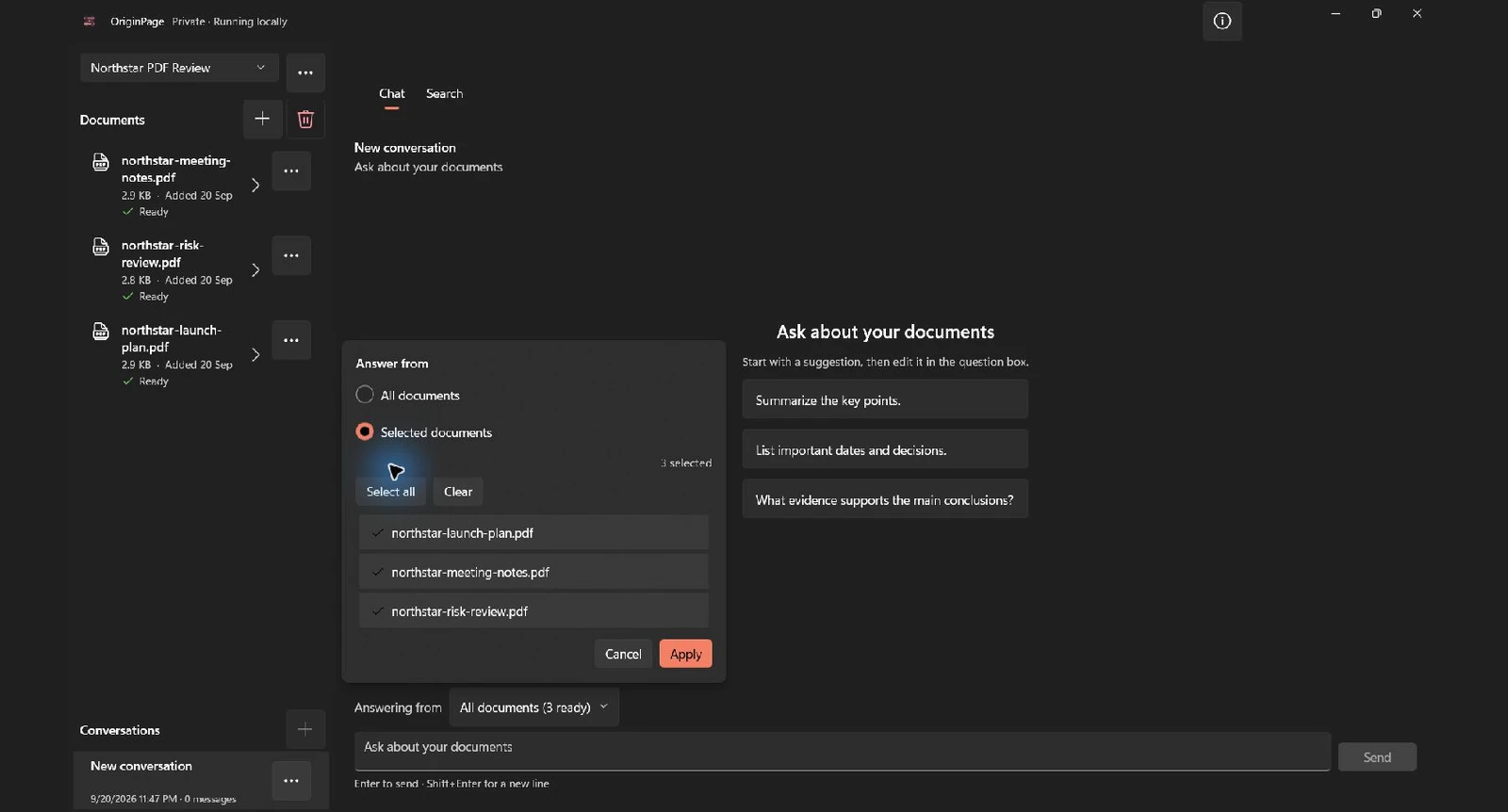
Scope is part of the question. “Summarize the obligations” means something different when the eligible set contains one signed agreement, the agreement plus an obsolete draft, or every contract for the same supplier. A model cannot infer your authority rules from filenames alone.
For confidential work, narrow the scope to the minimum documents needed for the task. This does not change the local-processing boundary, but it reduces irrelevant context and makes the result easier to audit. If versions coexist, identify the governing version in the prompt and separately ask for conflicts. Do not let an answer silently blend a draft with an executed document.
These screenshots use the actual downloadable PDFs. They record a useful limitation: the completed summary cited only one of the three files. Eligible scope tells you which documents may contribute, not which ones actually supplied evidence.
Step 4: ask for a summary with a defined shape
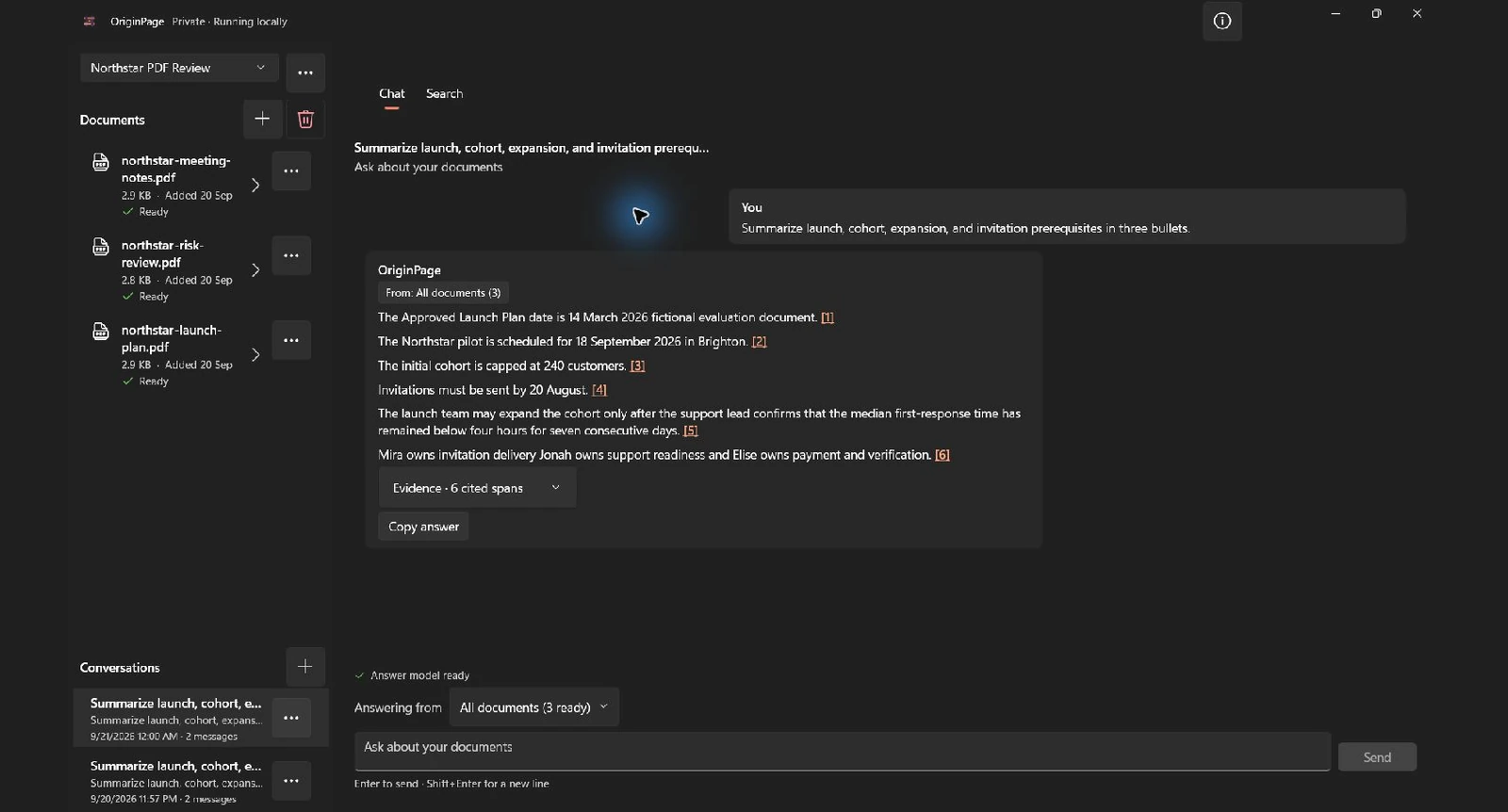
Use a concise prompt that names the topic and output shape. The prompt submitted to the installed local model was:
Summarize launch, cohort, expansion, and invitation prerequisites in three bullets.
The actual response returned six statements rather than three bullets. It covered the launch-plan date, pilot date and location, cohort cap, invitation deadline, expansion condition and owners. Its six citations all came from the launch plan. It did not include the meeting notes’ requirement to wait for both certification and rehearsal, so it was incomplete for the requested invitation prerequisites.
A good summary prompt usually defines four things:
- Subject: the decision, agreement, report, incident, or period you care about.
- Shape: bullets, timeline, table, executive brief, or list of obligations.
- Constraints: only stated facts, distinguish proposals from approvals, preserve uncertainty, or name missing information.
- Evidence expectation: cite every material statement and do not infer unsupported details.
Avoid asking for “everything important.” Importance depends on the reader and decision. A finance reviewer, project manager, lawyer, clinician, and engineer will prioritize different facts in the same file. State the audience or decision when it helps: Summarize for a project sponsor deciding whether invitations can be sent.
Also avoid cramming a full policy into one prompt. Shorter, focused questions make retrieval easier to diagnose. Build the final brief from several source-checked passes when the document set is complex.
Step 5: expand the evidence before trusting the prose
Open Evidence under an answer and inspect each passage. This capture shows all six cited spans, each labeled northstar-launch-plan.pdf, page 1. Neither of the other two files contributed a displayed citation.
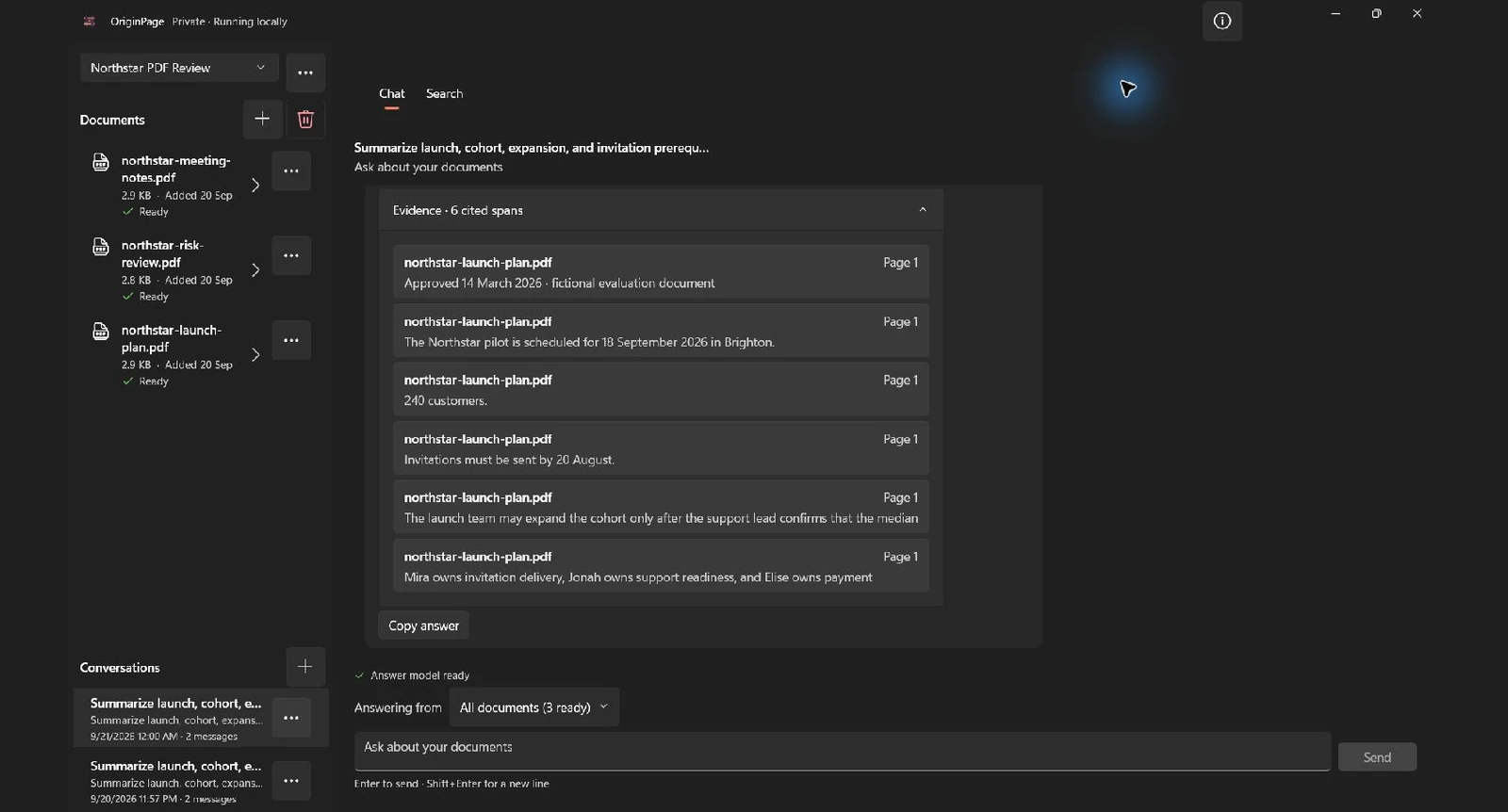
Use the downloadable files to build an independent coverage check: the launch plan gives the date and cohort condition, while the meeting notes give Elise’s checkpoint, Jonah’s rehearsal, and Mira’s dependency on both. Search the risk review for payment certification. These source-derived checks reveal what this response left out; do not infer completeness from fluent wording.
A useful summary must preserve the relevant details and cite supporting passages. Missing a source, omitting a condition, and attaching a non-supporting citation are different failures; check for all three.
Use this evidence audit for every material summary:
- Does each important claim have a cited span?
- Does the cited text say the same thing, with the same qualification?
- Are the filenames and pages plausible sources for the claim?
- Did every document that should matter contribute evidence?
- Are a date, amount, exception, negation, or responsibility missing?
- Did the model turn a proposal into a decision or a possibility into a requirement?
A citation is not a decorative confidence badge. It is an invitation to check the exact claim. Citation count alone is not completeness: ten spans from one chapter can still miss the governing exception in another.
Step 6: open the source context
Select an evidence span to open its page context. The source panel highlights the cited sentence while showing nearby headings and clauses. Here, the launch date appears under Schedule and capacity, followed by the cohort limit and invitation rule.
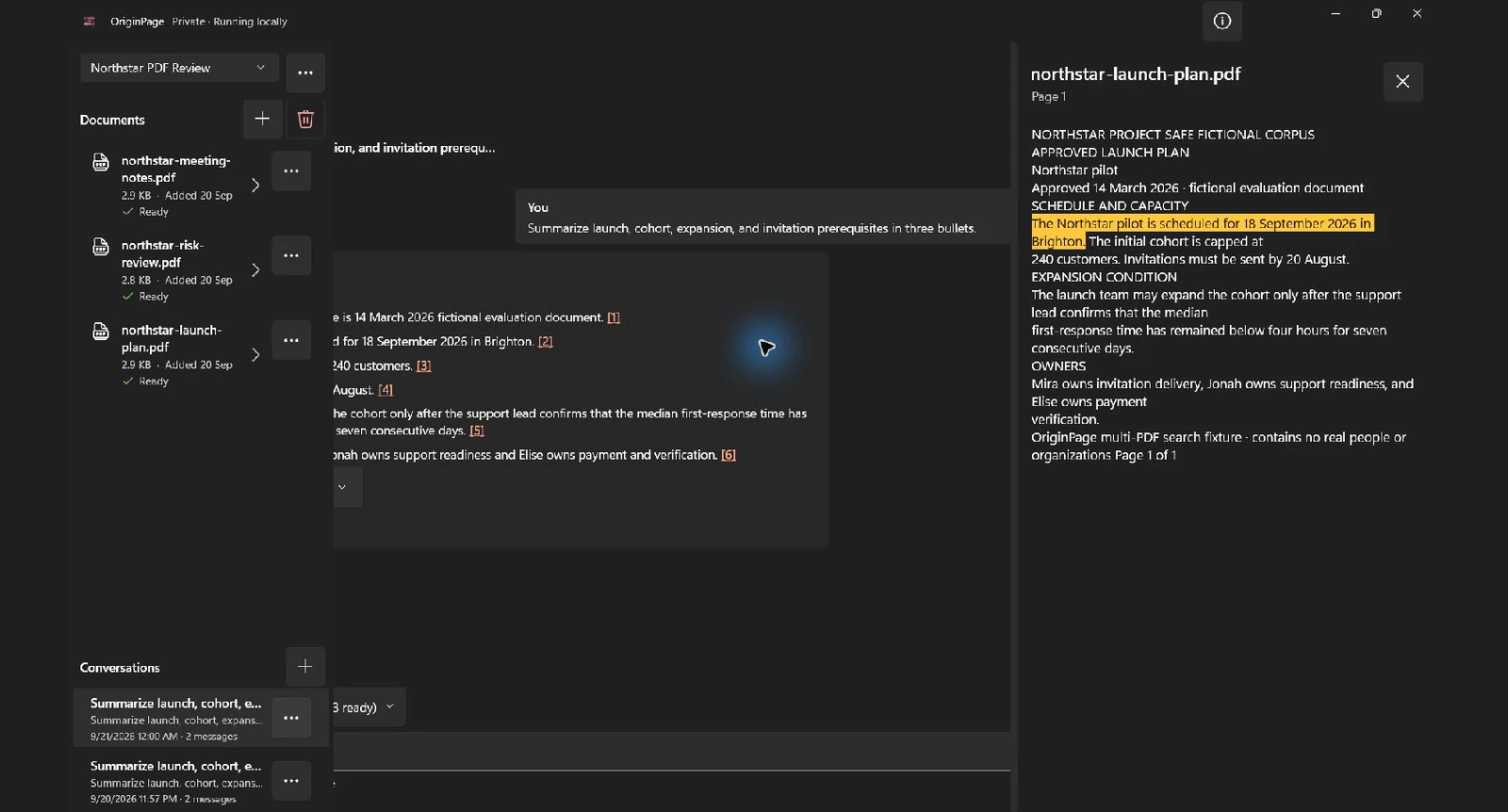
Context catches errors that a highlighted phrase cannot. The launch is scheduled for 18 September supports a date. The launch was previously scheduled for 18 September does not support the same current-state claim. A nearby heading may mark a section as draft, superseded, optional, or applicable only to one region.
When a claim changes a decision, read beyond the highlight. Check definitions, exceptions, footnotes, table headers, and the preceding sentence. If the page is a scan, compare the retained text with the rendered PDF. OriginPage helps you reach the source; it does not replace subject-matter judgment.
Step 7: search for omissions and run follow-ups
After checking the cited claims, look for what the first pass did not cover. Switch to Search and query known anchors such as 26 July, 9 August, Mira, payment certification, or rehearsal. Direct Search is useful here because it retrieves passages without asking the answer model to compose them.
Then ask smaller follow-ups, for example:
List every prerequisite that must be complete before invitations are sent.
Name each owner, their action, and any stated due date. Cite every item.
Compare the launch plan with the meeting notes. List facts present in only one source.
What relevant information is missing or ambiguous in these PDFs?
This decomposition is safer than repeatedly asking for a “better summary.” Each follow-up has a testable purpose: prerequisites, owners, cross-source differences, and gaps. Direct Search shows whether the source passage exists; Chat shows whether the local model can synthesize it.
For longer documents, use a coverage checklist. Summarize each relevant section or document independently, verify those notes, and only then request a consolidated brief. Keep conflicting versions separate. If no source supports a requested fact, the correct output is “not stated,” not a plausible completion.
Step 8: verify the local privacy statement
Open the top-right menu and choose About & privacy. The captured OriginPage build states that documents and conversations stay on the device, that OriginPage processes them locally, and that it does not send app content or telemetry. It also explains that the reporting link opens only when chosen and does not attach app content.
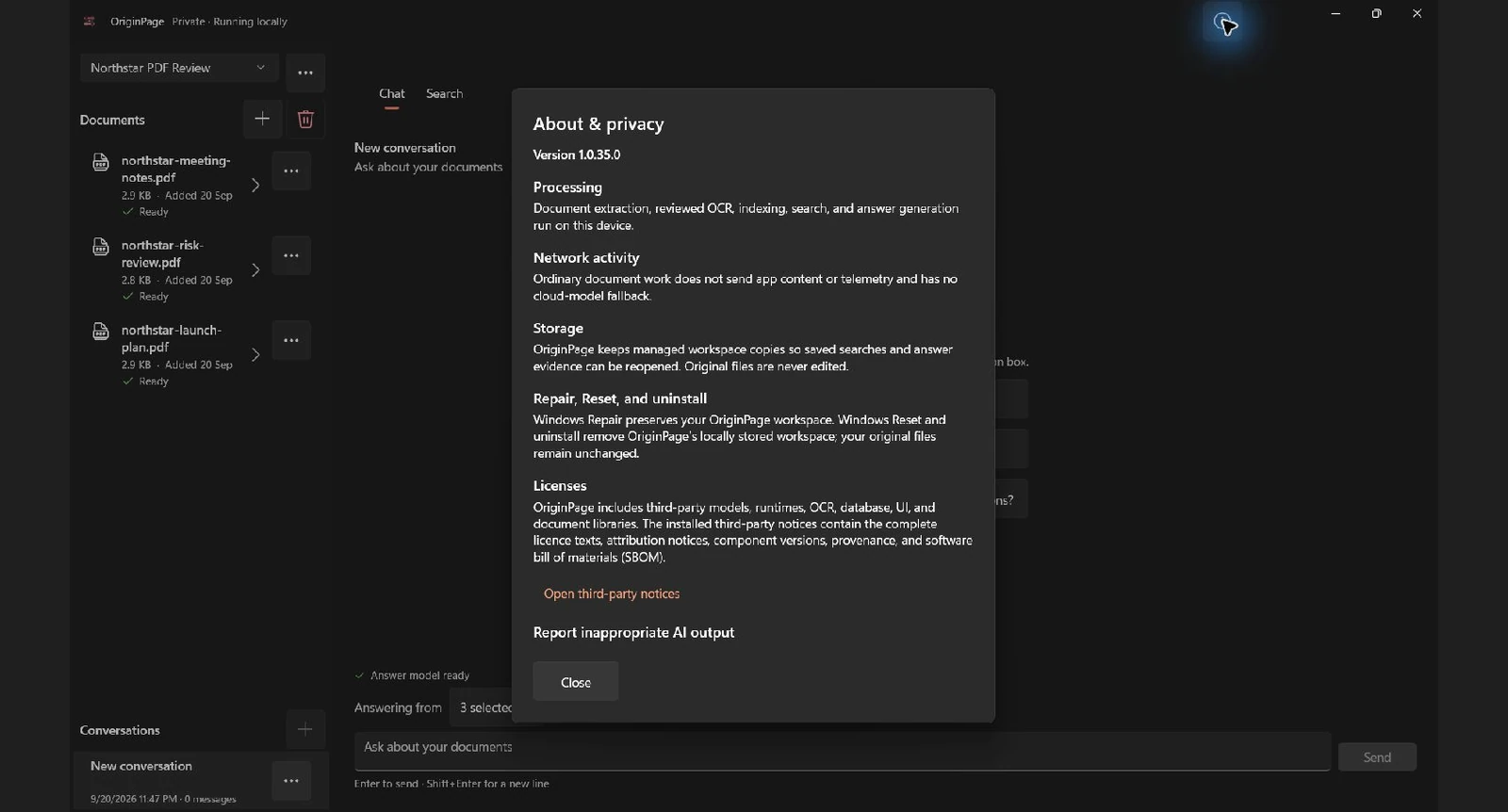
Do not rely on wording alone for a high-assurance deployment. Test the workflow while disconnected. Monitor the application’s process tree and network activity during import, OCR, indexing, search, and generation. Confirm there is no cloud fallback when a task is slow or a model is unavailable. Attribute connections to the correct process rather than treating unrelated Windows traffic as proof either way.
OriginPage’s local claim applies to its ordinary application workflow. Microsoft Store delivery, Windows servicing, security software, backup products, synced folders, and operating-system features remain separate. Your organization may need an approved device, network controls, retention rules, and an assessment of local model and dependency licensing.
Step 9: remove the managed copy when the work is done
Open the document menu and choose Remove. OriginPage asks for confirmation and explains the effect: its managed copy and processed data will be removed, while the original file and conversation remain.
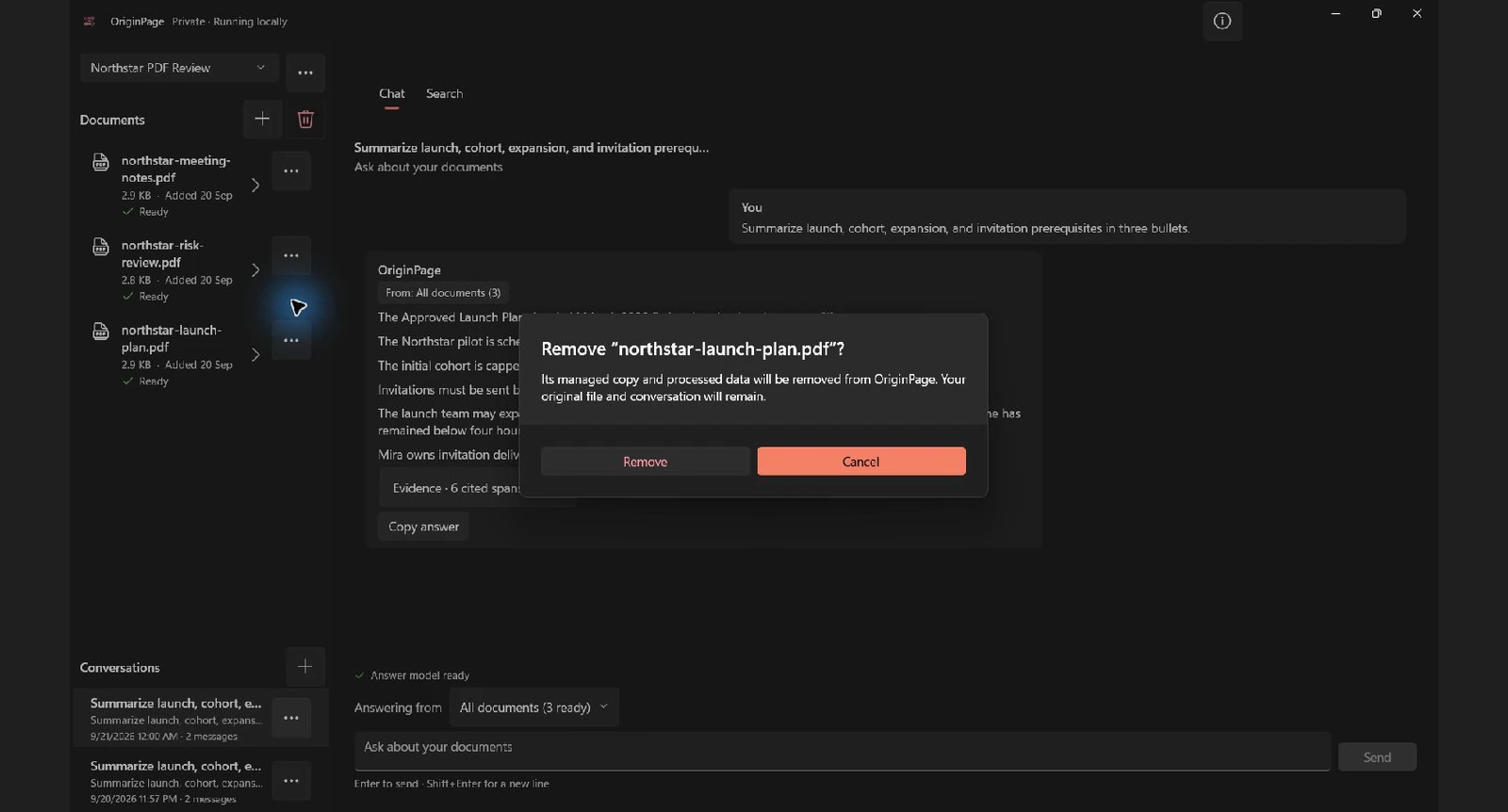
Removal is a lifecycle decision, not just interface tidying. The original PDF remains wherever you stored it. The conversation can remain because it may include generated text and cited material. Backups or disk snapshots may also outlive the application’s active workspace. Decide whether the task requires removing a single managed document, deleting a broader workspace, deleting exported notes, or following an enterprise retention procedure.
Windows Repair preserves the OriginPage workspace. Windows Reset and uninstall remove OriginPage’s locally stored workspace, according to the captured dialog. Confirm current behavior in the release you deploy, particularly when retention or defensible deletion matters.
Prompt templates for confidential PDF summaries
These templates are intentionally concise. Replace the bracketed terms and ask follow-ups instead of building one enormous prompt.
Executive brief
Summarize [topic] for [decision-maker] in five bullets. Separate decisions, dates, owners, risks, and open questions. Use only stated facts and cite every bullet.Contract or policy
List obligations for [party], with trigger, deadline, exception, and consequence. Quote no more than needed. Flag ambiguity and cite every item.Research or technical report
Summarize the question, method, sample, main findings, limitations, and stated uncertainty. Do not infer causation. Cite each section.Meeting pack
Create a timeline of decisions and actions. Name the owner and due date only when stated. Separate approved decisions from proposals and cite every entry.Cross-document comparison
Compare [document A] and [document B] on [topics]. Show agreements, conflicts, and facts present in only one source. Preserve document dates and cite every row.The best template is the one whose output you can verify. If a requested field is frequently absent, tell the model to write not stated. If document authority matters, name the governing file rather than expecting chronology or filename conventions to decide it.
Why a local PDF summary can still miss things
Running the model locally changes data flow. It does not remove the technical limits of retrieval and generation.
Retrieval is selective
The answer model usually receives a bounded set of passages rather than every token in every eligible PDF. A broad question can retrieve the most obvious passage and miss a less similarly worded exception elsewhere. Inspect contributing filenames and use direct search or section-by-section follow-ups.
Extraction defines the evidence ceiling
If a page is image-only, scrambled, encrypted, or poorly OCR’d, its facts may never enter the index correctly. Inspect extracted text before diagnosing the model.
Layout carries meaning
Tables, footnotes, sidebars, and multi-column pages can lose relationships when converted to linear text. Verify important cells and qualifiers against the visible page.
Prompts encode priorities
“Summarize this” does not say whether dates, financial exposure, dissent, implementation details, or exceptions matter. Name the audience, decision, and required categories.
Versions can be blended
A workspace with a draft and a signed copy can retrieve both. Restrict the scope or request an explicit version comparison. Relevance ranking is not document authority.
Fluent prose hides uncertainty
Models are optimized to produce coherent language. Coherence can make an incomplete answer feel final. Evidence, negative tests, and human review are the counterweight.
Troubleshooting
The answer cites only one PDF
First ask whether one source genuinely contains every requested fact. If not, use Direct Search for known anchors in the missing documents, confirm they are Ready, and ask narrower follow-ups. Check scope and extraction before rephrasing endlessly.
A scanned PDF produces a strange date or name
Open Document details and review OCR output. Compare uncertain characters with the visible page. Correct the evidence layer before accepting generated prose that repeats the error.
The summary is too generic
Specify the reader and decision. Request named fields such as dates, owners, obligations, risks, exceptions, and missing information. Limit the answer length only after defining what it must retain.
The answer sounds right but has weak evidence
Open every span. If the source is merely related, not supportive, discard the claim. Search for the precise wording and ask a smaller question. For consequential work, record the verified source independently of the generated answer.
The app reports insufficient memory
Close memory-heavy applications and retry when at least 4 GiB of physical memory is available. Local generation uses the PC’s resources; privacy does not make inference free.
The document is too large or encrypted
Use a permitted local workflow to decrypt or split the file before import, preserving page references and chain-of-custody requirements where relevant. Do not send it to an online converter merely to make a local summarizer accept it.
FAQ
Can I summarize a PDF without uploading it?
Yes. Use a tool that performs extraction, OCR, indexing, retrieval, and generation locally. Verify the entire pipeline, because a desktop interface can still call cloud services. OriginPage is designed for a local Windows workflow with inspectable source evidence.
Is local summarization safe for confidential documents?
It reduces disclosure to the application vendor and hosted model providers, but safety depends on the device and surrounding systems. Use an approved computer, disk encryption, access control, suitable backups, and a retention policy. Local processing is one control, not a guarantee.
Can I summarize a scanned PDF offline?
Yes, if the application includes local OCR and supports the scan’s language, quality, and length. Review OCR output for names, numbers, dates, and tables before trusting a summary. OriginPage’s current target supports up to 100 OCR pages per PDF and focuses initially on printed English.
Does an offline summary need citations?
It should. Privacy and accuracy are separate. A locally generated answer can still omit, merge, or misread facts. Filename, page, and source spans let you verify each material statement and notice when a document did not contribute.
Can I summarize several confidential PDFs together?
Yes. Put a coherent set in one local workspace, wait until every intended file is Ready, choose All documents or a deliberate subset, and audit which files supplied evidence. Use per-document summaries before consolidation when the collection is large or versions conflict.
Is a PDF summary suitable for legal or medical decisions?
It can help a qualified person navigate material, but it is not professional advice or an authoritative record. Verify against the original source and follow the review, confidentiality, and recordkeeping rules for the domain.
What happens to the PDF after I remove it?
In the captured OriginPage build, Remove deletes the application’s managed copy and processed data while leaving the original file and conversation. Other copies, exports, backups, and snapshots have separate lifecycles.
A repeatable evidence-first checklist
Use this loop whenever you summarize confidential PDFs:
- Confirm the device and folder are approved for the material.
- Import only the relevant files into a deliberate workspace.
- Wait until every intended PDF says Ready.
- Inspect extracted text and review OCR-sensitive details.
- Set the narrowest useful answer scope.
- Ask for a defined output with citations and
not statedfor gaps. - Expand evidence and verify every material claim.
- Check whether all expected documents contributed.
- Open source context for dates, amounts, duties, exceptions, and negations.
- Use Direct Search and smaller follow-ups to find omissions.
- Keep human judgment responsible for consequential conclusions.
- Remove managed data and other copies according to the retention policy.
That is the practical way to summarize a PDF without uploading it: keep the pipeline local, keep the evidence visible, and treat the first answer as the beginning of review rather than the end.
Method note
Captured September 20–21, 2026 in OriginPage 1.0.35.0 using the three published PDFs. The first attempt with all three files explicitly selected closed the app and left a saved generation-failure message. After reopening, the same prompt completed in a new conversation using All documents; the workspace still contained only those three files. The response produced six statements and six launch-plan citations, omitting the meeting notes’ invitation prerequisites. No answer or citation was inserted by a capture helper. The removal dialog was cancelled and every source file remains present. These captures demonstrate an observed workflow and its limitations, not reliable completeness or a new offline network qualification.
For related workflows, read How to Chat With PDFs Offline on Windows, How to Search Across Multiple PDFs With AI: Completely Offline, and How to Tell Whether an AI Tool Actually Read Your PDF. The full OriginPage guide covers workspaces, OCR, search, conversations, evidence, and local data lifecycle.
Try the local summary workflow yourselfSafe fictional PDFs with known facts and cross-document omissions to test DownloadTry OriginPage free for seven days through Microsoft Store to use this workflow on Windows 11. A one-time purchase is required to continue after the trial.